
Author: rory-admin

  • How to best utilize and organize OneDrive, the free cloud storage included with your Microsoft 365 subscription

    How to best utilize and organize OneDrive, the free cloud storage included with your Microsoft 365 subscription

    We find with our clients we find they’re often unaware they have a personal cloud storage solution right at their fingers tips and included for free with their Microsoft 365 subscription, OneDrive.

    Every Microsoft 365 business subscription user will have 1 TB of storage space free with their Microsoft 365 subscription. If you have an IT provider managing your Microsoft 365 subscriptions they probably have set this up to backup certain folders by default, usually your documents, pictures and desktop folders.

    These folders will automatically be synchronized to the cloud, so it provides excellent protection if one of your company devices is lost, stolen or breaks. It’s also a good cybersecurity measure to have your company workstations backed up in someway so if there’s ever a cybersecurity attack that effects your office, not all of your files will be lost.

    On that note, Microsoft does operate on what they call a “shared responsibility” model, so if your Microsoft account is compromised as well you may still lose those files even if they were backed up (which is why we always recommend enabling 2-Factor Authentication, Microsoft makes it easy).

    If OneDrive is successfully enabled on a device you’ll see a little blue cloud icon on your task bar, that when you hover over will tell you the status of your backup (it should say your files are up to date).
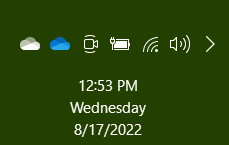
    Clicking on the blue cloud will allow you a glimpse at what files have been backed up recently, as well as a quick way to access the OneDrive folder located on your computer as well as the one that’s found online.

    1 Terabyte of storage is plenty for most users, but if you’re a heavy data user or someone in charge of most of the documentation for your office you may need more. Microsoft offers OneDrive plans outside of the 1 TB you receive for free as a Microsoft 365 user, see our chart below:
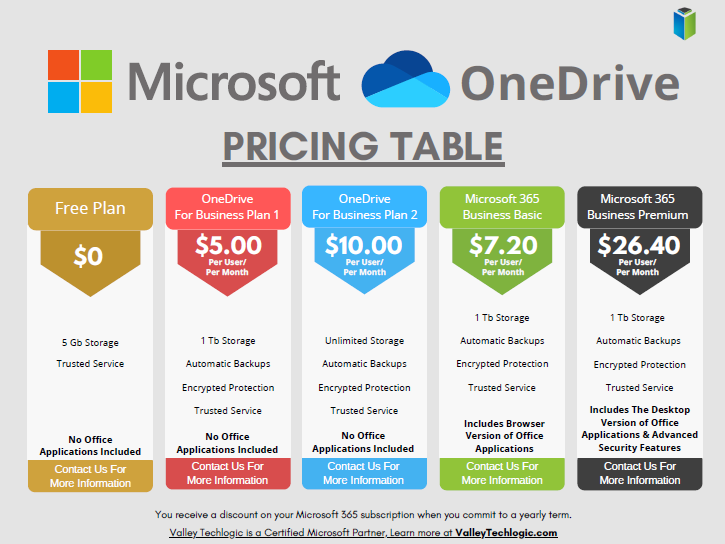
    Also, if you just want to try the service out but you’re not yet a Microsoft 365 user, you can either purchase a OneDrive subscription outside of the Microsoft 365 service (though we wouldn’t necessarily recommend it, Microsoft 365 is a better value) or you can test drive the service with their completely free 5 gigabyte storage option.

    5 GB is not a lot of storage these days but if you’re wanting to see if the service would be a good fit for you, it’s plenty for a good test run.

    Once you have your OneDrive set up, you might be thinking about how you’re going to organize it. Luckily, for the folders you back up any pre-existing folder organization you have will be backed up as well. If you have a sub-folder inside your Documents folder labeled “Mikes Important Files 8/20/2019” that same sub-folder will exist in your OneDrive.

    Besides that, here are 5 fast and easy folder organization tips:

    1. Don’t let files languish in your Downloads folder. I’m guilty of this myself, you’re busy and files you receive from colleagues or make just never make it out of their origination folder. It’s a good habit as you go to organization your new OneDrive space to sort things as they come in.
    2. Organize things by project or by date. When you’re looking for work and documents around a certain task or event, sorting by the date or by project is a good system to easily find them again. I’m in favor of by project myself.
    3. Use descriptive names, there’s nothing worse than trying to find a specific receipt if all your receipts from that store have the exact same name. Rename files so they’re easy to find.
    4. While sorting things when they come in is a good idea, even the best intentions fail when we get busy. Set up a time once a week to sort anything that gets left behind.
    5. Don’t make a folder for every single thing. You don’t want the solution to become worse than the problem. Group up items where you can (this is another vote in favor of sorting by project).

    If you need help with your businesses Microsoft 365 subscription and OneDrive, or just for tackling the topic of backups once and for all – Valley Techlogic is here for you. We even have our own backup solution for servers, TechVault. Learn more with a quick consultation today.

    Looking for more to read? We suggest these other articles from our site.

    This article was powered by Valley Techlogic, an IT service provider in Atwater, CA. You can find more information at https://www.valleytechlogic.com/ or on Facebook at https://www.facebook.com/valleytechlogic/ . Follow us on Twitter at https://x.com/valleytechlogic.


  • Winamp is BACK again, and our 3 best Windows media player recommendations

    Winamp is BACK again, and our 3 best Windows media player recommendations

    If you came of age in the 90’s to early 2000’s then you probably have fond memories of Winamp (short for Windows Advanced Multimedia Products).

    Released in 1997 it was the dominant music player for a while on PC, having 3 million downloads by 1998. With fun features such as music visualization and the ability to change “skins” it was one of the most downloaded software for Windows devices for a few years.

    Winamp in 2022
    Winamp looks the same today as it did 20 years.

    Skins and visualizations were just two of the popular “plugin” modules that could be downloaded, it could also be used as a media library and had the ability to add album art to help you sort your music. Remember having a plethora of MP3s on your PC before services like Spotify and Apple Music existed?

    Winamp has passed through a number of owners over the years, with updates stopping in 2013 under parent company AOL as streaming music rose in popularity. It’s now owned by Radionomy and it’s first update in 4 years has just been released to the public.

    Whether it sees success riding a wave of nostalgia during a time when 90s era clothing and branding seems to be making a comeback is yet to be seen, but we were excited to give it a try. Their new website is sleek and modern but we’re happy to report the application still feels the “same as it ever was” (another throwback for you guys).

    If you clicked on this article, you may be wondering what’s available for media players on Windows besides the default – Groove music for well, music and Windows Media Player for video.

    As no muss no fuss options those are fine but there are media players out there that will expand your capabilities, allowing you to stream the same content across multiple devices – even your TV.

    Here are our top 3 picks:

    1. Plex – Plex not only allows you to stream your own media for free across devices, including TV, PC, Android and Apple, they also have on demand content and even live TV.
    2. VLC Media Player – Open source and cross device, this lightweight media player often has support for file types the others fail to play, especially useful for playing subtitles in a variety of languages.
    3. Kodi – Another free media player option, this one is unique in that it works on Raspberry Pi devices, making it a good choice for helping you set up an inexpensive media playing platform for your television even if it’s not a “smart” tv.
    Click to grab the full size version.

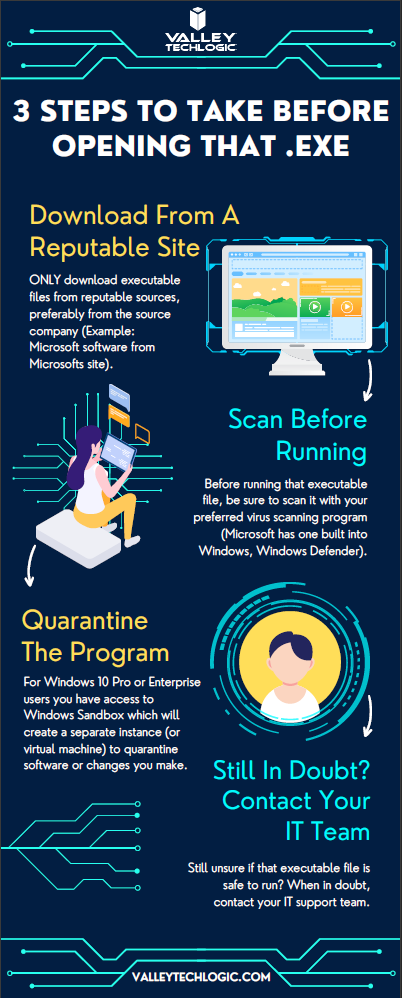
    While this topic falls outside our normal wheelhouse we wanted to touch on it and offer our advice on safe picks for media players. It’s always a good idea to do your research when downloading any software. Here is our three-step guide for what you should do with any newly downloaded executable file:While Valley Techlogic can’t help you with your media playing setup at home, we can help you navigate software choices for your business. Set up a consultation with us today to learn more.

    Looking for more to read? We suggest these other articles from our site.

    This article was powered by Valley Techlogic, an IT service provider in Atwater, CA. You can find more information at https://www.valleytechlogic.com/ or on Facebook at https://www.facebook.com/valleytechlogic/ . Follow us on Twitter at https://x.com/valleytechlogic.
  • 5 of the Most Important Cybersecurity Training Topics to Cover with Your Employees

    5 of the Most Important Cybersecurity Training Topics to Cover with Your Employees

    We’ve discussed cybersecurity training before and its importance in preventing the number 1 cause of cybersecurity disasters – human error.

    We offer cybersecurity training as a core feature in our tech care plans, but many topics you can (and should) cover yourself with your employees. There couple be rules that specifically apply to your business sector; like HIPAA for healthcare or CMMC for Department of Defense contractors.

    Maybe you’ve experienced a cybersecurity attack before and after the dust settled you came up with a game plan specifically to prevent it from happening again. If it hasn’t happened to you yet, it’s a mistake to assume it never will. In 2021 42% of businesses experienced a cyberattack. It’s a numbers game most won’t win without preventions in place.

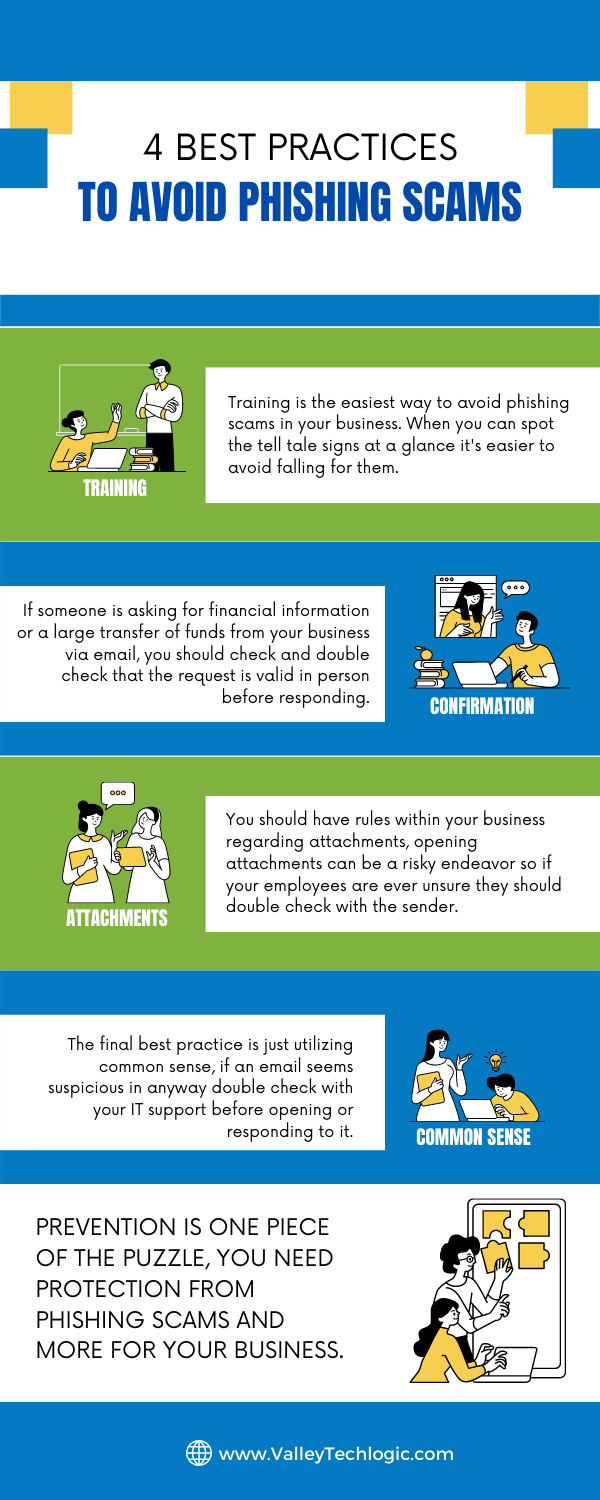
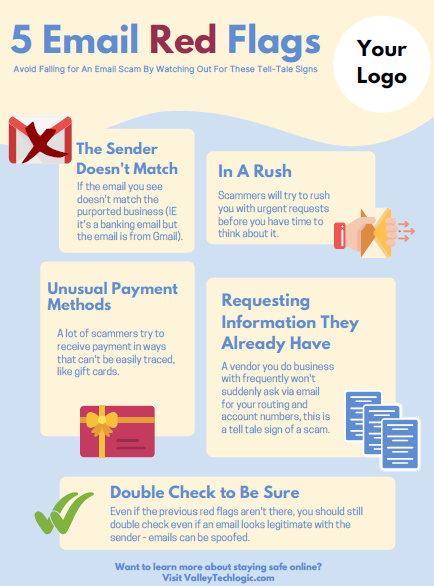
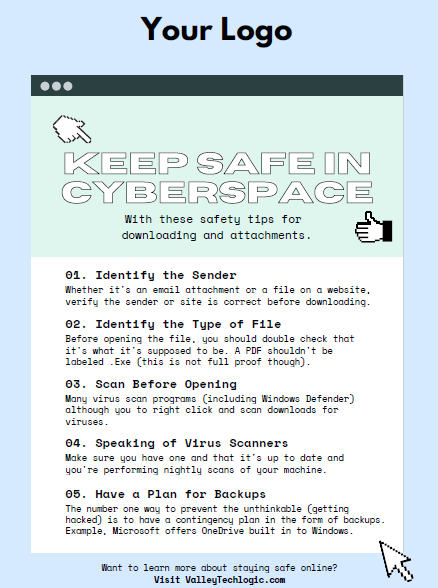
    To start, we want to offer these posters we’ve created on two common cybersecurity threat topics, email and malicious attachments. These posters are free for you to print and brand to use in your office or send as a reminder, and these are two excellent places to start when you’re looking to beef up your office security.

    Click to grab the full size version.
    Click to grab the full size version.

    Here are five more training topics all workplaces should also cover:

    1. Like our posters above, email security and having strict guidelines for attachments and downloads is one key thing to focus on in your cybersecurity training efforts.
    2. It’s also important to provide guidance for internet usage while at work. Many employers try to digitally lock this down, but these efforts are usually met with annoyance and disdain from employees and are often in vain. Instead of arbitrarily trying to block everything with software we suggest having guidance about what’s appropriate for work devices (and what Isn’t). We also suggest noting that even if a website looks legitimate it may not be, so they should be wary of sites that ask you to download something or enter private credentials.
    3. This comes to the next topic which is practicing good safety hygiene with work devices. Three easy steps are: Locking your computer when you walk away, only downloading software from work authorized sites, and keeping your device up to date with patching and software updates. They may need assistance with the third step so it’s a good idea to have your IT provider manage workstations if you’re able to (this is something Valley Techlogic providers for all clients).
    4. The fourth step is protecting company data. If you’re employees have to interact with documents that are confidential in nature you should have rules for the sharing of those documents, as well as a comprehensive plan for backing them up safety.
    5. Finally, you should provide guidance on passwords and multi-factor authentication. Having a rule in your workplace that for work accounts they must have multi-factor enabled (or have your IT team enable it across the board) will drastically improve your office’s online safety. We have guidance for this topic here.

    It can feel overwhelming to have all of these topics to cover with your employees, but we cannot overstate how important it is to cover these topics with your employees, even if you think they’re things they should already “know”.

    At Valley Techlogic we have partnered with a platform that not only provides cybersecurity training resources, but it also allows you the ability to create your own training modules. You can even cover topics that fall outside the cybersecurity spectrum. We can also work with your business to assist you in the creation of these training modules, if you would like to learn more schedule a consultation with our sales manager Annette today!

    Looking for more to read? We suggest these other articles from our site.

    This article was powered by Valley Techlogic, an IT service provider in Atwater, CA. You can find more information at https://www.valleytechlogic.com/ or on Facebook at https://www.facebook.com/valleytechlogic/ . Follow us on Twitter at https://x.com/valleytechlogic.

  • 5 Tips for Conquering Email Spam (and Phishing) in 2022

    We’ve posted on how to spot a phishing email before on this website, but what about just thwarting the attempt before it even reaches your inbox?

    Email filtering is a complex topic, too strict and you miss important emails. Too lax, your inbox is flooded with spam and attempts to scam you. At Valley Techlogic, we feel like we have a good regimen for helping our clients get the emails they need and not the ones they don’t.

    On top of that, email phishing is STILL the biggest security threat to your business. In 2021, 83% of businesses experienced phishing attack attempts and 15 billion spam emails occur every day.

    That’s a lot of attempts to circumvent the security features you have in place within your business, or if you don’t have protections in place (especially highly effective ones like multi-factor authentication) then your business may be a sitting duck. All it takes is one employee clicking on the wrong attachment and you have a major security headache on your hands.

    So, to foil those attempts, here are 5 tips for conquering email spam and preventing phishing attempts at the same time:

    1. Mark spam as spam. One of the easiest ways to see less spam in your inbox is to mark spam as spam, email filters learn from you what you’re looking to see in your inbox. While the most egregious spam will still be filtered out by your email provider for the most part, for sophisticated spam attempts your assistance helps. This also blocks the sender from sending future attempts.
    2. Learn the telltale signs. There 5 easy telltale signs an email is spam or phishing. They are: an unrecognizable sender, requesting personal information, an email that doesn’t match the purported sender, it asks you to take immediate action and/or there are a lot of typos.
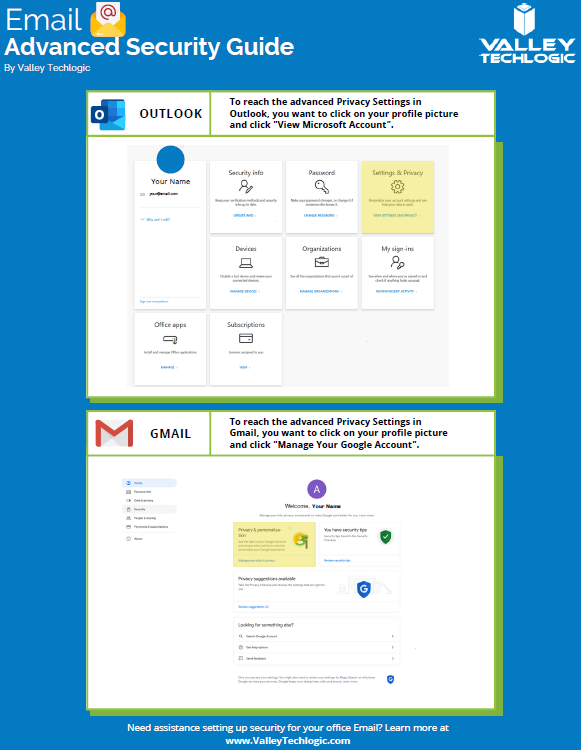
    3. Enable more advanced privacy settings. Many email providers have privacy and security settings to provide more advanced protection. See our guide below for enabling these settings for Gmail and Outlook.
    4. For businesses, don’t go with the obvious choice for email. Many of us use just our first name or our first name and a last initial when creating our work emails, while this helps make our emails more memorable and easier to recite, it also opens us up to spam. If you have a spam problem, it might be best to switch things up in this area.
    5. Unsubscribe from mailing lists, especially the ones you didn’t sign up for. Another good way to combat spam in particular is to unsubscribe from mailing lists, there are rules and regulations that say vendors must respect this request or they’re potentially violating their emailing providers terms and conditions.
      Email Security Guide for Gmail and Outlook
      Click to view the full size version.

      Another way to combat spam and phishing emails is through a tool. There are tools that can be built into your browser or email client, many of them use the SLAM method. With this method they check the sender, the links, the attachments, and the message itself to look for telltale signs it’s a spam or phishing email.

    At Valley Techlogic we provide security awareness training – which is another excellent tool for preventing cyberattacks – and an extension for Outlook that includes the training and spam/phishing testing tool right in your inbox to all of our clients.

    We can also offer simulated phishing attempts so you will know if anyone in your organization could use additional training on the topic. Schedule a consultation today to learn more about how we can help you with your business’s email related goals.

    Looking for more to read? We suggest these other articles from our site.

    This article was powered by Valley Techlogic, an IT service provider in Atwater, CA. You can find more information at https://www.valleytechlogic.com/ or on Facebook at https://www.facebook.com/valleytechlogic/ . Follow us on Twitter at https://x.com/valleytechlogic.
  • This weeks Microsoft outage brought down Teams, Outlook and more for several hours

    This weeks Microsoft outage brought down Teams, Outlook and more for several hours

    In major outage news, this week Microsoft had an outage that lasted over 6 hours and brought down Teams, Outlook and Exchange and more – grinding some workplace activities to a halt until the services came back. The outage affected Microsoft 365 customers worldwide.

    Services resumed yesterday morning although there were residual issues for some customers regarding logins and more. Most of the affected services were the online versions of the product, if you have a desktop accessible version of the Microsoft 365 products you may have noticed less of a disruption (other than Teams being unavailable).

    The cause of the outage was announced on Twitter:

    We’ve determined that a recent deployment contained a broken connection to an internal storage service, which has resulted in impact. We’re working to direct traffic to a healthy service to mitigate impact. Additional information can be found in the admin center under TM402718.

    — Microsoft 365 Status (@MSFT365Status) July 21, 2022

    By afternoon Thursday July 21st the Microsoft service health page (which can be found here) indicated that all services were up and running as usual.

    Valley Techlogic is a Microsoft shop by and large and we’re major proponents of the Microsoft 365 suite of services. As we mentioned, those who currently had a Microsoft 365 plan with access to the desk top versions were, or would have been, less affected by this week’s outage.

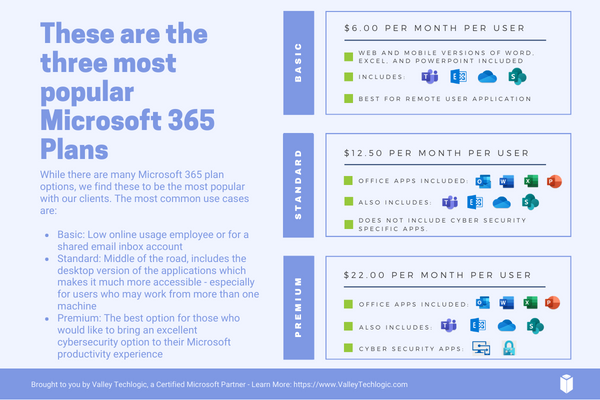
    Here’s a quick guide to the Microsoft 365 plans we recommend to our customers and why in a nutshell (note: this pricing is after discount for an annual commitment).

    Microsoft 365 Plan Chart

    Basic is a good product, but to make the most of your Microsoft 365 subscription plan we generally recommend spending a little more for Standard or Premium. For our security conscious clients in particular, the Premium subscription is an excellent value.

    Microsoft Business Premium comes with advanced cybersecurity protections built into the product, even if you’re not taking any other steps to protect your business from a cyberattack – switching to Microsoft Business Premium will give you major benefits for a very reasonable price (just $22 per user per month).

    Microsoft Business Basic is perfect for an extremely light user experience, say a shared email inbox for a specific billing purpose or for an employee who doesn’t perform many online tasks. For everyone else, we highly recommend upgrading.

    As we mentioned, we’re a Microsoft shop and a certified Microsoft partner and can assist you directly with your Microsoft products, especially choosing a Microsoft 365 subscription that will be the best fit for your business. Learn more today with a quick consultation.

    Looking for more to read? We suggest these other articles from our site.

    This article was powered by Valley Techlogic, an IT service provider in Atwater, CA. You can find more information at https://www.valleytechlogic.com/ or on Facebook at https://www.facebook.com/valleytechlogic/ . Follow us on Twitter at https://x.com/valleytechlogic.
  • With Windows 11 out now, how many people are still using Windows 7?

    With Windows 11 out now, how many people are still using Windows 7?

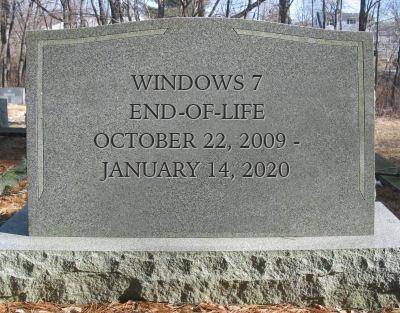
    Windows 11 arrived this year to a somewhat muted response that mostly can be attributed to a tempered rollout – many machines that would have been eligible for a Windows software upgrade in the past were deemed not eligible for the enhanced requirements found in Windows 11. The end-of-life date for Windows 10 is still a way off (October 14, 2025) but a surprising number of people are still using Windows 7 which had it’s end of life event over two years ago now, on January 14th, 2020.

    Microsoft 7 EOL Tombstone

    However, according to GlobalStats Windows 7 still has an almost 12% operating market share. While many of those are probably unused machines that still equates to a large percentage of Windows 7 users over 2 years past it’s end of life date.

    When an operating system is discontinued by Microsoft that means they stop providing support and updates for it, including security updates that protect users from ongoing threats. Even the FBI has strongly warned against continuing to use Windows 7 as it can make you an easy target for cybercrime.

    It can be challenging to move away from a system you know well and at this point upgrading probably means also purchasing new hardware, which during the microchip shortages exacerbated by the pandemic could be no small task (or expense). However, there are deals to be had on hardware now in 2022.

    It can be also difficult to find software that’s supported on an older operating system as updates are made to make them compatible with the latest generation of operating systems.

    We know that for some of our clients it’s actually the reverse, they’re utilizing a line of business software that no longer is being maintained or updated by the provider, but it still functions for their business. The caveat being they must use it on an older machine that hasn’t been updated.

    There are several inherent risks to this, including the first one being that that machine is an obvious choice as a threat vector for would be bad actors. The tenuous relationship between that software and the hardware that deploys it is also ripe for failure the longer you wait to replace it. Securing older hardware to be able to continue to use a discontinued line of business software will also be a significant challenge as time goes on.

    We’ve touched on comfort and convenience between prime motivation to continue using an unsupported operating system, but there’s also the technology challenge of deploying new hardware and software within your business. A major rollout is best left to the experts who can smoothly retrieve the data from your devices and help you make the transition to newer hardware.

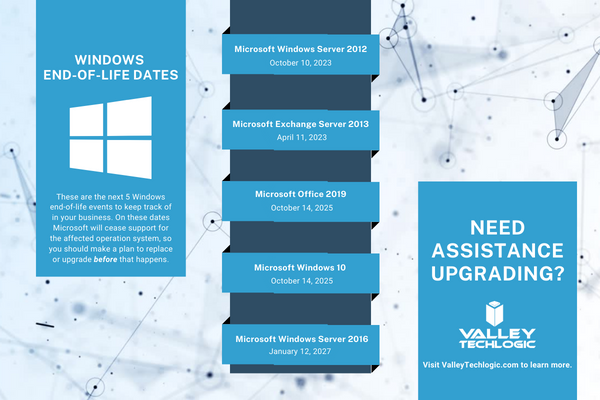
    At Valley Techlogic, we can even help you with procuring that hardware and making the best software choices for your business. This includes servers as well. Here is a list of the next 5 Windows end-of-life dates that you should be keeping an eye out for.

    Microsoft EOL Dates That Are Coming Up

    If for some reason you just can’t part with an outdated operating system at this time, here are three tips that will make it slightly safer until you are able to replace those devices:

    1. Make using an anti-virus and firewall a priority. This won’t offer you complete protection as many threats will seek to undermine the unsecured status of the device, but it’s better than being completely unsecured.
    2. Login to important accounts from another device if possible. We would not suggest logging into sites such as your banking website from a device this far out of date from updates.
    3. Utilize network-based mitigation strategies. This is again not foolproof strategy but separating your Windows 7 or other end-of-life devices from the rest of network will offer a slight buffer in the event the device(s) are compromised.

    Need assistance migrating away from devices that have reached their end-of-life date? Valley Techlogic can help, we’re a certified Microsoft partner and experts in all things Windows. Reach out to us today for a quick consultation to learn more.

    Looking for more to read? We suggest these other articles from our site.

    This article was powered by Valley Techlogic, an IT service provider in Atwater, CA. You can find more information at https://www.valleytechlogic.com/ or on Facebook at https://www.facebook.com/valleytechlogic/ . Follow us on Twitter at https://x.com/valleytechlogic.
  • Our UPDATED Guide to MFA (Multi-Factor Authentication)

    Our UPDATED Guide to MFA (Multi-Factor Authentication)

    Last year we had an article on our top picks for 2-factor authentication and we’ve touched on what makes a good password before. We thought it would be a good idea to refresh our advice on this topic and combine our tips into one easy to revisit guide.

    One thing that we surprising haven’t recommended often before but would like to now is implementing Microsoft 365 2-factor authentication on your account. We utilize Microsoft products heavily in our business and we find many of our clients are the same, Microsoft software solutions are deeply woven into their day-to-day business activities. You can find our quick guide to implementing it in last week’s article here.

    We’ve also touched on how implementing 2-factor on your Google account could decrease your odds of your account being hacked by half. In many cases it really is as easy as implementing the built in 2-factor settings in the accounts you utilize and you may not even need to install a 2-factor authentication software, you can simply have the codes texted to your mobile device.

    Since this is a guide though we still want to give you a recommendation on that though, for us we’ve utilized Microsoft’s authenticator program for the most part. We also found that Google’s Authenticator and Authy’s Authenticator mobile apps are very easy to use as well.

    It can be a little more convenient to have the 2-factor codes in one place, so you don’t have to request a code be texted every time you login (especially if you have a lot of different login’s you use throughout your workday).

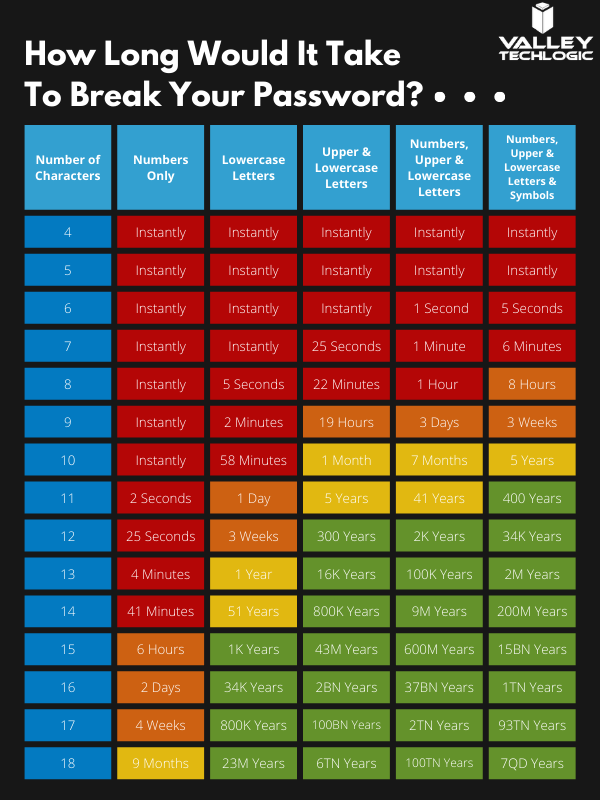
    You may be asking yourself at this point, what’s wrong with just my plain old password? You may have typing it in down to muscle memory and you don’t have to retrieve a code from anywhere. Well, this chart on how long it can take a crack a password based on specific criteria will tell you why:

    How long would it take to break your password?

    Of course, the more complex your password is the greater the difficulty in cracking it, that brings us to our next bit of advice – utilize a password manager and have stronger (and varied) passwords.

    Across the board for Valley Techlogic our employees are using LastPass, we like that it’s cross device and cross platform and enjoy the warnings and alerts it gives us if a password has been possibly compromised or if we’re trying to reuse a password we’ve used before.

    However, any reputable password manager is going to be a big improvement over reusing simple passwords or trying to remember complicated ones.

    Even with a password manager, your passwords being compromised online is the main reason you should consider enabling 2-factor or multi-factor on your accounts. You can have strong varied passwords and your passwords may be leaked due a breach that’s outside your control. Webpages are hacked all the time, and if your banking password is part of a data breach it can then become available to bad actors on the dark web.

    With 2-factor enabled however, it won’t matter if they have your password as they would still need your authenticator program or your mobile device to login to the account. We think it’s worth the (very slight) inconvenience of a few seconds to have that level of security.

    If you’re security conscious and want to go even further, you can also use a security token to lock your device (highly recommended for sensitive work devices). That means the device is useless without the security token to be able to unlock it.

    Enabling multi-factor authentication across your business uniformly can be an uphill battle, but it is one we have experience with here at Valley Techlogic. As security regulations increase, this simple change will make a huge difference in your cybersecurity compliance level. Learn more today with a quick consultation.

    Looking for more to read? We suggest these other articles from our site.

    This article was powered by Valley TechLogic, an IT service provider in Atwater, CA. You can find more information at https://www.valleytechlogic.com/ or on Facebook at https://www.facebook.com/valleytechlogic/ . Follow us on Twitter at https://x.com/valleytechlogic.
  • Summer is Here and with it Comes Vacations – Our Top 10 Travel Tech Tips

    Summer is Here and with it Comes Vacations – Our Top 10 Travel Tech Tips

    As we approach Fourth of July weekend, reduced COVID era restrictions have made travel feasible (and desirable) for many across the US for the first time since spring 2020. We all might be a little rusty when it comes to internet safety on the go or maybe you’re looking for tech tips that will make traveling easier? Well, we have you covered.

    Traveling and using your devices away from your home or office network carries some risks. Here are 5 things you should do before you travel to protect your devices.

    1. While traveling sometimes you can’t avoid using a public network, but one good way to protect your device is to make sure it’s been fully updated. That way it will be slightly safer when using less secure networks (although it’s still a good idea to avoid it if you can).
    2. Another good bit of advice is to make sure you have strong passwords, and to have a password manager setup and ready to go on the device you’ll be traveling with.
    3. One tool for traveling and using risky public networks is to enable a VPN, a VPN will help shield your data.
    4. You should also avoid logging into websites that contain important data, like your email or banking website on a public network.
    5. Finally, another good tip if you haven’t done so already is to set up “Find My Phone” on your mobile device. This will allow you to remotely wipe your mobile phone if you were to lose it while traveling (or possibly even find it if it’s still nearby).

    If you’re already on the road or away from home, we also have these 5 tips for making your travel easier with technology:

    1. Power banks are a must have while on the go, having a fully charged power bank on you will make sure you can charge your phone if the battery is low while you’re out and about.
    2. RFID blocking bags can help protect your personal information from intrusive scanning, especially for things like your credit card.
    3. Save pictures you take with your mobile phone automatically to the cloud with a service like Google Photos or Amazon Photos (the pricing for these products is very reasonable as well).
    4. A tip specifically for iPhone users, you can update friends and family on your airline travels just by texting them the airline and flight information. Texting “American Airlines 425” will allow them to tap and automatically see a flight tracker with the flight information. Handy!
    5. Looking for more legroom in your return flight home? Search SeatGuru to find the best seat on a particular flight.

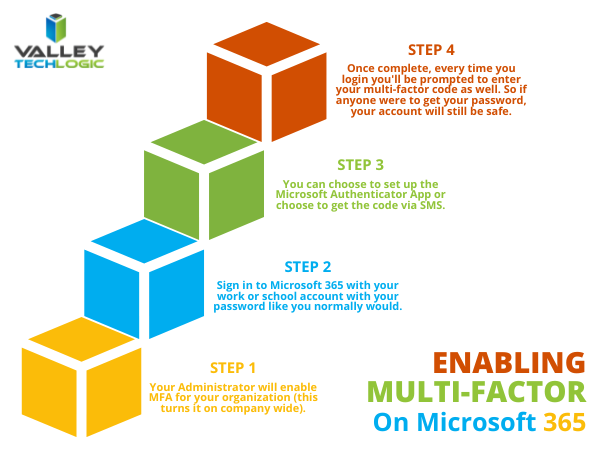
    Company travel is a different can of worms, especially when it comes to securing your office devices while on the road. At a minimum, we recommend enabling 2-factor or multi-factor authentication for company devices – especially those that are used on the go. For Microsoft 365 users, it’s easy to setup multi-factor authentication. Here are the steps:

    Enabling MFA on Microsoft 365

    If your office needs help setting up multi-factor authentication for remote and traveling employees, Valley Techlogic would be happy to assist. Tell us more in a quick consultation.

    Looking for more to read? We suggest these other articles from our site.

    This article was powered by Valley TechLogic, an IT service provider in Atwater, CA. You can find more information at https://www.valleytechlogic.com/ or on Facebook at https://www.facebook.com/valleytechlogic/ . Follow us on Twitter at https://x.com/valleytechlogic.
  • How a phishing scam swindled this Shark Tank host out of $400,000

    How a phishing scam swindled this Shark Tank host out of $400,000

    We’ve focused a lot of articles on phishing scams and how no one is immune, even major money moguls like Barbara Corcoran from ABC’s Shark Tank with a net worth estimated at over $100 million fell victim to a phishing scam that wound up costing her $400,000.

    Business owners are a particularly lucrative target for bad actors, and phishing emails continue to grow more sophisticated. In this instance Barbara reports receiving an email that looked like it came from her secretary going to her accountant authorizing the amount to go to a real estate deal.

    Barbara like many business owners has deals going on all the time so the amount and type of authorization wasn’t unusual, allowing it to fly under everyone’s noses and make the scammers involved $400,000 richer. It wasn’t until her accountant sent an email to her real secretary confirming the transaction one last time that the scam was uncovered – and by then it was too late the transfer had already been sent.

    This case proves that even with strong checks and balances in place, phishing scams can happen to almost anyone. While Barbara was able to absorb the hit without it hurting her business – many out there could not.

    While the amount of money lost in this instance is quite substantial, millions of dollars are lost every day to cyber crime. It’s estimated that $1,797,945 is lost per minute according to Risk IQ’s Evil Internet Minute Report.

    Even if you think your business is too small to be a target you would be wrong, scammers cast wide nets looking for victims to fall in. Here are 4 things you can have in place that could prevent this kind of scam from happening to you.

    Email Best Practices

    Even with these checks in place it can still be tricky to avoid, especially if your business has become a particular target for a scammer. Another famous example is how Facebook and Google were tricked out of $100 million due to an extended attack phishing attack organized by a scammer located in Lithuania. A little less than half of the money lost was recovered.

    Another famous attack in 2014 saw the early release of four movies produced by Sony Pictures when North Korean hackers, upset about a movie that was being released at the time, sent targeted phishing emails that appeared as if they were coming from Apple to a top Sony executive. The damage that incurred from this attack was estimated to be over $80 million.

    With both of these attacks it’s not just about the money lost either, these attacks are easily searchable to this day and had an untold effect on their reputation at the time. Massive companies like Google, Facebook and Sony can weather the storm, but could your business do the same?

    Education is just one piece of the puzzle, active protection is another crucial element to avoiding the lengthy damage that can arise from a successful phishing campaign. At Valley Techlogic cyber security is a core focus for all of our plans. Learn more today with a quick and easy consultation.

    Looking for more to read? We suggest these other articles from our site.

    This article was powered by Valley TechLogic, an IT service provider in Atwater, CA. You can find more information at https://www.valleytechlogic.com/ or on Facebook at https://www.facebook.com/valleytechlogic/ . Follow us on Twitter at https://x.com/valleytechlogic.

  • Windows 365 and the Pros and Cons of Virtualization in Cloud Computing

    Windows 365 and the Pros and Cons of Virtualization in Cloud Computing

    One of the big announcements that coincided with the news around Windows 11 was the arrival of Windows 365, Microsoft’s new cloud PC product.

    Windows 365 is an easy to use, cross device cloud computing solution. You log into a Windows 10 virtual PC (Windows 11 should be available soon) and it’s already pre-loaded with the Microsoft 365 suite of tools and ready to go.

    The best part is it’s not restricted to whatever device you’re logging into, the Windows 365 instance you log into from work is the same one you can log into from your home device.

    You can even access increased computing power. You can configure a Windows 365 instance that has more processing power than the device you’re logging in from. It also includes one of the main benefits of cloud computing, the ability to easily roll back to a previous instance. Accidentally deleted a file you’ve been working on all day?  Roll back to an earlier instance to easily recover it.

    It’s also beneficial to the security of your business, if you have employees that work from home it can be difficult to manage devices that aren’t under your office network. You can have these employees instead log into their Windows 365 instances and you know that the rules are the same across the board (and that they’re benefitting from the Microsoft 365 advanced security features).

    Pricing for Windows 365 starts at $28 per month for a setup that’s best for low intensity office work all the way up to $162 per month for an 8 Core model with 512 GBs of shortage. Pricing leads us to the discussion of the pros and cons to virtualizing your office.

    5 Pros of Virtualizing Your Office Are:

    1. Increased Availability: As we mentioned, your Windows 365 goes wherever you do. The beauty of the cloud is it’s available everywhere and as most cloud computing products have an uptime guarantee.
    2. Easy to Setup: With Windows 365, many of the applications you use are already preloaded. You can also have your IT team set up the instances ahead of time, so your new employees don’t have to waste a day installing the programs they need to use.
    3. Data Security: This one applies to servers as well but having a cloud backup for both your devices and office server increases your data security through redundancy.
    4. Disaster Recovery: On the same topic, if something happens to the device your employee logs in from or your office server, the data is still safe in the cloud which means little to no downtime.
    5. Efficient: You can apply policies and updates to all of your Windows 365 instances at once, no managing updates one computer at a time.

    The cons you may encounter are:

    1. Start Up Costs: Most of the costs around cloud computing is related to the storage you need, and some of these costs are ongoing. When you buy a device it’s usually a one time purchase, but you also have to think about the costs associated with maintaining the device. With cloud computing, maintenance costs are deferred.
    2. Availability: While most providers have a guaranteed uptime, there can be times where the service is down. Also, your internet connect will matter a great deal when it comes to connecting to your cloud instance. Backups may take longer if you have a poor internet connection at your office.
    3. Limitations: You can spec out any kind of machine you like to fit a specific purpose, but with virtualization you are limited to what’s available and setups for the most common use cases are going to be what’s highly available.

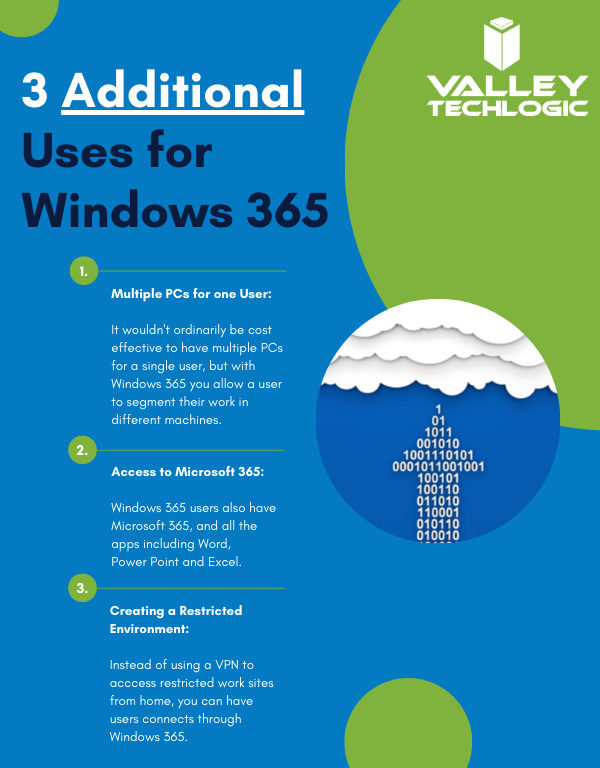
    Here are a few other ways you can use Windows 365 in your business:

    Additional Windows 365 Benefits

    Interested in learning how Valley Techlogic can help your business create a virtualization plan? Learn more today with a quick consultation.

    Looking for more to read? We suggest these other articles from our site.

    This article was powered by Valley TechLogic, an IT service provider in Atwater, CA. You can find more information at https://www.valleytechlogic.com/ or on Facebook at https://www.facebook.com/valleytechlogic/ . Follow us on Twitter at https://x.com/valleytechlogic.