
Author: rory-admin

  • Refurbished versus new, what are your options when it comes to on-premises servers?

    Refurbished versus new, what are your options when it comes to on-premises servers?

    There’s no debate, when it comes to buying an on-premises server for your office it’s a big decision where cost is absolutely a major factor. The word “refurbished” sometimes causes our clients to recoil, we’ve all had bad experiences purchasing refurbished electronics that were DOA (dead on arrival) or perhaps were cosmetically or functionally dubious.

    With servers it’s a little different. Typically, what we see from servers is that one was sent back to the retailer very early on into its life span. Sometimes it’s because the configuration just wasn’t right for the purchaser or because they come from a sector that has very rigorous standards for server replacement (some sectors look to replace servers every 3 years). These servers will still have a lot of life left in them and the big server manufacturers (Dell, IBM, HP etc) will reset them, add some new components, and bring them back up to practically like new conditions.

    If you have a very specific goal in mind for your on-premises server and know you need the latest and greatest hardware components to meet that goal, then we definitely recommend purchasing new. If your goal is to replace an existing aging server or your needs for capacity are more minimal, refurbished is a great option.

    Here are three pluses when buying a new server.

    1. Warranty – New servers will have the longest warranty available; we typically see 5 years being the standard.
    2. Customizable – When you buy a new server you get to customize the hardware and storage, with a refurbished server you’re purchasing what the manufacturer has available.
    3. Modern Features – A new server will have all the latest features, have the highest performance, and be compatible with modern software.

    There also pluses when considering refurbished:

    1. Cost Saving – Of course, the first plus is the cost saving benefits. We often find a refurbished server is substantially less than a new server. You could save as much as 80% compared to buying a new server.
    2. Still Effective – A refurbished server will still be almost as effective as a new server, and for many of our clients there is no noticeable difference between new and refurbished for their use case.
    3. Still Includes a Warranty – While it won’t come with a manufacturer’s warranty, Valley Techlogic offers a 1-year warranty for clients who purchase a refurbished server through us.

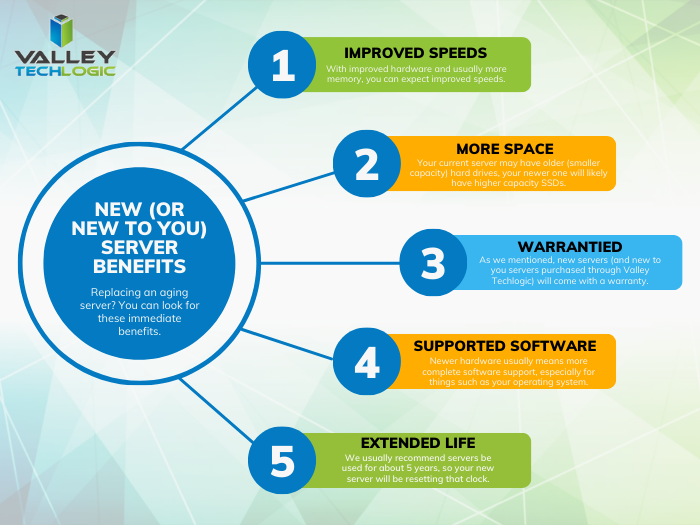
    Of course, there are things to consider when doing a server upgrade in general. Here is a chart with the benefits you will receive when replacing an aging on-premises server:

    Another thing to consider is if your current server is compatible with your existing line of office software a refurbished server may be more compatible, sometimes being on the bleeding edge of technology can have its downsides especially when it comes to legacy software.

    You also want to keep in mind that lead times will vary as well, refurbished servers are often more available while a server customized for your business could take longer to get. If your current server is on it’s last leg or has even died, refurbished may not be your best option but your only option.

    There are a lot of things to consider when it comes to buying a server, and Valley Techlogic can help. We not only offer in-house procurement services we also can do an assessment of your specific situation and offer the best buying advice for your business. Reach out today to learn more.

    Looking for more to read? We suggest these other articles from our site.

    This article was powered by Valley Techlogic, an IT service provider in Atwater, CA. You can find more information at https://www.valleytechlogic.com/ or on Facebook at https://www.facebook.com/valleytechlogic/ . Follow us on Twitter at https://x.com/valleytechlogic.

  • RAID Arrays Explained, What is it and do you need one?

    RAID Arrays Explained, What is it and do you need one?

    RAID arrays or Redundant Array of Independent Disks is a type of storage configuration where your data is saved across multiple hard drives or SSDs. There are a number of benefits to doing this including increased performance and data redundancy. Because your data is saved across multiple drives you have better protection in the event of a drive failure.

    Basically, if one of the drives in your RAID array fails your drives will then go into “rebuild mode” which will allow the remaining drives to recover the data, the failed drive can then be replaced with little downtime for you. A RAID array is not always necessary, we wouldn’t suggest one for regular employee use for example as SSDs are very reliable (especially compared to hard drives with mechanical parts that can fail). You also have the option of cloud storage for devices that don’t have much data to save on a daily basis.

    However, for servers or other systems where data protection is critical, a RAID array is a necessary option to keep that data intact. They are also beneficial for systems that work with very large files as the computer can pull pieces of the file in unison and load them much quicker than a single drive. There are many different configurations for RAID arrays such as:

    1. RAID 0: In the world of data two is one and one is zero, and such is the case with RAID arrays. The first RAID array configuration involves breaking up your data into “stripes” across one or more drives, however it does not provide redundancy like other RAID arrays do. If a drive fails under RAID 0 the data is lost. However, it does improve speeds and can allow you to gain more space on your drives.
    2. RAID 1 provides an exact mirror of your data across multiple drives, which does allow for data redundancy. In the case of a drive failure as long as one drive is functional you will still have access to your data. The pitfall to this is your data storage can only be as big as the largest drive in the array, so if you have a 1 TB drive paired with a 4 TB drive only 1 TB would be usable. This RAID array type also doesn’t really provide a system performance boost, it’s purely a data redundancy setup.
    3. RAID 5 provides good redundancy coverage and improves performance. A RAID 5 array consists of 3 or more drives, this RAID array type splits your data consistently across the board and improves your system performance at the same time. However, for most clients we would suggest the next setup.
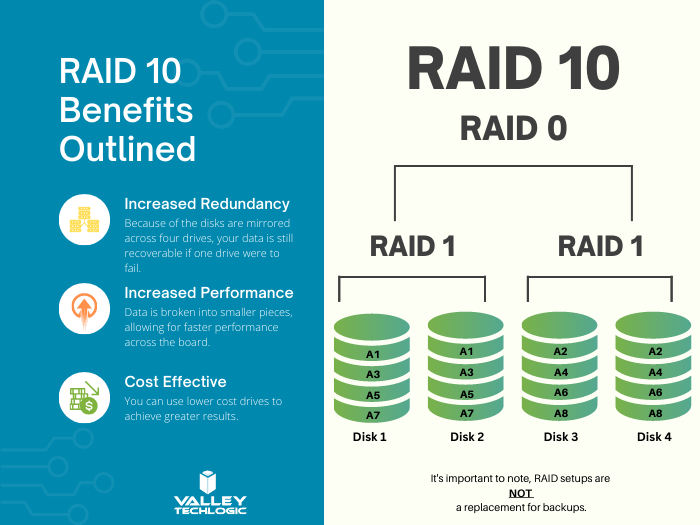
    4. RAID 10 combines two RAID 1 arrays with two RAID 0 arrays to provide both greatly improving performance (that falls in line with the RAID 0 benefit) and greatly increasing redundancy (as you get with a traditional RAID 1 set up) for not much more than you would spend to have a RAID 5 installed. For systems that run software in addition to storing data this is the setup we highly recommend.

    Here are some other benefits of having a RAID 10 setup for your server or systems where data is a high priority:

    RAID 10 Benefits ExplainedThere are still other questions that need to be answered beyond just RAID type, like what drive capacity should you be looking for? Would a HDD (Hard Drive Disk) work in this case to have more inexpensive but higher capacity or should you be looking for SDDs (Solid State Drives)?

    These are questions that can be answered by our professional sales team, they’re experts in technical equipment procurement and can help make suggestions and offer buying advice specifically tailored to your business. Learn more today by scheduling a consultation with our sales manager.

    Looking for more to read? We suggest these other articles from our site.

    This article was powered by Valley Techlogic, an IT service provider in Atwater, CA. You can find more information at https://www.valleytechlogic.com/ or on Facebook at https://www.facebook.com/valleytechlogic/ . Follow us on Twitter at https://x.com/valleytechlogic.

  • Patch Management 101 – From Neglected to Automated; 5 Tips for Managing Patching in your Business

    Patch Management 101 – From Neglected to Automated; 5 Tips for Managing Patching in your Business

    If we asked a new client what they had in place for patching most of them would answer in one of two ways. Either they’re “pretty sure” patching is happening regularly, or they know patches have mostly been ignored for quite some time.

    Regardless of how they answered, the outcome is usually the same. We usually inherit managing systems that are way behind on patches. That’s because patching doesn’t start out being an automated easy process for most businesses, there is some effort required to get into a good patching process established.

    If patching is left up to employees for their devices, it’s typical for the “Remind Me Later” to become the permanent option when it comes to patching. Depending on their level within your company this can either be a bad idea to very risky (though any device can act as a threat vector when it’s connected to your network). If a device that has admin level access is unpatched and it’s basically handing the keys to your kingdom over to bad actors.

    That’s because many patches are released specifically to address an active security concern. While functionality and quality of life improvements are also addressed via patching, active security concern patches can be released with little notice and should not be ignored.

    We’re also aware many users have a negative association with patching, especially if they’ve installed patches in the past and encountered bugs or issues. While these patches can be rolled back, it may not be simple to do so especially if your machine hasn’t been set up that way.

    There’s also patches for IoT (Internet of Things) and peripheral devices that aren’t as simple as clicking “Update Now”. Many times, patching these devices involves going to the companies website, downloading the patch, and manually installing it. With routers in particular patches are typically released to address a very serious security threat. We reported on a series of Netgear routers which when unpatched could easily be taken over by an intruder.

    Now that we’ve established why patching is important, here are five ways to make it more manageable:

    1. Create an Inventory of Devices Within Your Business: To manage consistent patching across the board you first need to know what you have. It’s a good idea to keep an inventory of all your devices (even peripherals or handheld devices like tablets).
    2. Create Consistency for Work Devices: For devices you or your employees work on, like laptops and desktops, it’s a good idea to try and maintain consistency. Meaning if you’re applying a patch to one of them you should apply it to all of them. That way it’s not a mishmash of various updates across your business. This will also make it much easier to troubleshoot any issues.
    3. Make Sure They’re Running the Latest OS (Operating System) Too: For Windows devices, it’s also important to keep them up to date with the latest OS version. Windows will discontinue patches for operating systems that have reached end-of-life. This doesn’t mean they no longer require patching; in fact, these devices are often targeted by hackers specifically because they can no longer be maintained.
    4. Also, for Windows Devices Have a Group Policy for Patching: This is an advanced tip, but you or your current IT provider can setup a group policy to make sure patches are occurring on a schedule for Windows devices.
    5. Work With a Professional to Create a Patching Plan: Patching is part of ongoing maintenance, and it can be difficult to address it on your own. At Valley Techlogic patching management is provided under every monthly service plan with us.

    Here is a mini report on how Valley Techlogic addresses patching management (as well as other routine maintenance items):

    Interested in learning more? Schedule a consultation with us today.

    Looking for more to read? We suggest these other articles from our site.

    This article was powered by Valley Techlogic, an IT service provider in Atwater, CA. You can find more information at https://www.valleytechlogic.com/ or on Facebook at https://www.facebook.com/valleytechlogic/ . Follow us on Twitter at https://x.com/valleytechlogic.
  • Western Digital suffers a ransomware attack, with hackers requesting an 8 figure sum and leaking image from internal meeting

    Western Digital suffers a ransomware attack, with hackers requesting an 8 figure sum and leaking image from internal meeting

    Western Digital is a well-known name in the data production and storage industry. Established in 1970, they were one of the original players in the process of making semiconductors and they have a storied history that began with calculator chips, included a bankruptcy as well as being at the forefront of floppy disc creation in the 1980’s to eventually the hard drives they became known for in the 1990’s. Chances are good you have had a Western Digital drive in one of your devices (you may even have one now).

    Despite being leaders in the digital storage industry, they’ve unfortunately proven no one is immune when it comes to ransomware attacks. While this story emerged mid-April (and the attack occurred March 26) we have an update as the hacker group “BlackCat” taunts Western Digital by leaking an internal video conference on the topic just this week. They leaked an image from the meeting on social media coyly dubbing the people included “the finest threat hunters Western Digital has to offer”. A clear mockery of their attempts to remediate the threat thus far.

    The hacker group is clearly trying to up the ante to get the company to fork over the ransom they’ve requested, a sum reportedly coming in at an eye watering 8 figures. For context a typical ransomware payment paid out by a business in Quarter 1 of 2022 was $228, 125. For individuals payouts hover around $6000. In a nutshell, ransomware is a lucrative business for those with unscrupulous motives.

    To make matters worse, it’s been reported that the group BlackCat has access to multiple Western Digital systems. Meaning this attack was well orchestrated and highly effective at not only making their data vulnerable but creating a disruption to all parts of their business. Western Digital has reported requested the services of outside security and forensic experts to try and recover what they can but needless to say this is an expensive lesson for their business both in money and time lost as well as their reputation in the technical industry.

    You would think being a leader in data storage that their backup recovery process would be flawless, unfortunately when hackers gain domain level access even the best laid plans for your data can go out the window. That’s why Valley Techlogic offers a multi-pronged approach to backups.

    Many clients like the idea that all their data is at their fingertips within their on-premises server. The server itself serves as a physical reminder that their data is ready and available when they need it.

    Unfortunately, having your data all in one place is not a good idea. Other than ransomware attacks such as this, it also leaves your business vulnerable if your server fails for whatever reason. We’ve seen it before; many clients aren’t expecting their servers to just give out or for something like a fire or other disaster to affect them and when it happens, they’re left scrambling. The process to recover from scratch is not always guaranteed and even if a recovery is possible, it can take as long as 3 months to get back mostly to where you were. Generally, a 100% recovery is not possible in these instances.

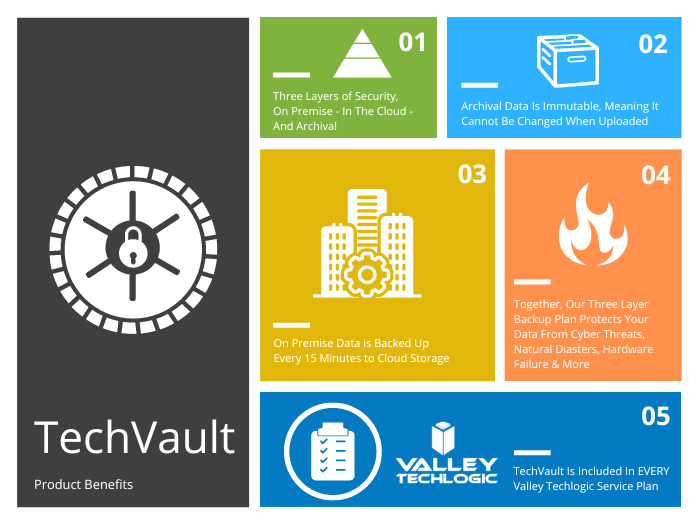
    That’s why at Valley Techlogic our backup solution TechVault is available and used by each of our clients. We have this chart on the benefits of our TechVault solution.

    You can also learn more about it by visiting here. If the Western Digital breach has left you concerned for the safety of your data, or you would just like more information on our backup solution you can request a consultation with our expert sales staff here.

    Looking for more to read? We suggest these other articles from our site.

    This article was powered by Valley Techlogic, an IT service provider in Atwater, CA. You can find more information at https://www.valleytechlogic.com/ or on Facebook at https://www.facebook.com/valleytechlogic/ . Follow us on Twitter at https://x.com/valleytechlogic.
  • When a data breach leads to jail time for an ex-CEO, and why you should take data security seriously in 2023

    When a data breach leads to jail time for an ex-CEO, and why you should take data security seriously in 2023

    We’ve seen plenty of examples of extreme monetary penalties occurring from data breaches, but this is the first we’ve seen of anyone actually being jailed for one.

    Vastaamo was a Finnish psychotherapy provider that was founded in 2008. While it was a sub-contractor under the government, Vastaamo like many healthcare related businesses was the subject of data breach attempts, with two additional successful attempts occurring  in 2018 and 2019. These attempts failed to be reported by the company.

    The ex-CEO Ville Tapio did report the 2020 breach to authorities, after all of their patient data was stolen by the cyber criminals. These criminals asked for €450,000 (about $.0.5 million in US dollars at the time of writing) and when that was unsuccessful, they then demanded €200 from each patient of the clinic for which they had records on. They warned this fee would increase to €500 each if the clinic did not pay within 24 hours.

    They warned the patients that after 48 hours with no payment they would be doxxed. Doxxing is when your private details are leaked online (this can include your payment information but also things like your address). In this case they were even willing to leak client session records and notes. They leaked the details of 300 patients which included politicians and police office. A 10 GB file containing the patient notes for over 2000 patients was also found on the dark web following the hack.

    While the clinic, Vastaamo, was a victim in this case authorities still looked at the overall picture when making the decision to charge ex-CEO Ville Tapio, including the previous breaches and the fact that he had insider knowledge of the company’s cybersecurity coverage (or lack thereof). He was charged with a 3-month suspended sentence and the company itself had to file bankruptcy and eventually went under.

    The severity of the breach and the companies lack of accountability when it came to cybersecurity protections made them run afoul of the GDPR (General Data Protection Regulation) which are Europe’s regulations on data protection and privacy for its citizens.

    If you’re a US based company owner it’s not a good idea to think “Well nothing like this could happen here”. California recently passed the CCPA (California Consumer Privacy Act) which allows customers more say so over the data your business collects on them. If your business has contracts with the DoD (Department of Defense) you’re probably already seeing stricter restrictions and regulations for how your business must be cybersecurity compliant to keep doing business with the government via CMMC (Cybersecurity Maturity Model Certification). HIPAA is old news for medical practitioners, but we still find many that are not compliant with the regulations.

    Suffice to say there can be blowback that extends beyond financial penalties and injuries to your business’s reputation. Small steps in protecting the data within your business can make a huge difference in the outcome you have (whether it be avoiding an attack altogether or making for an easier recovery).

    If you need creating or developing a more robust cybersecurity gameplan, Valley Techlogic is the one you’re looking for. Cybersecurity is our number one concern, and we take implementing cyber prevention measures for our clients very seriously. If you would like a consultation to learn more just visit here to get started.

    Looking for more to read? We suggest these other articles from our site.

    This article was powered by Valley Techlogic, an IT service provider in Atwater, CA. You can find more information at https://www.valleytechlogic.com/ or on Facebook at https://www.facebook.com/valleytechlogic/ . Follow us on Twitter at https://x.com/valleytechlogic.

  • 5 USB flash drive safety and usage tips, also our 3 recommended drives for 2023

    5 USB flash drive safety and usage tips, also our 3 recommended drives for 2023

    USB flash drives (also known as thumb drives or memory sticks) have grown a lot in the last few years, what was once a handy tool for transporting small files but couldn’t compete with the capacity of CD disks or traditional drives is now available in sizes up to 1 terabyte which makes them a competitive product for even backup purposes.

    While they may have fallen in favor due to cloud services becoming more ubiquitous, many are looking for more tangible ways to backup important files and take them on the go.

    Many users also worry about the safety of these devices. This is because they’re a common vector for drop attacks, which is where a USB drive is left in a conspicuous location for someone to find and try to use not knowing it contains a virus or trojan horse.

    They also can be insecure if left on a desk or somewhere in public. Luckily, there are even options now that offer 2 factor authentication, biometric verification, and encryption. This means even if your flash drive fell into the wrong hands, it would be useless to the thief. You should also be wary of where you plug your flash drive into as the data path is a two way street.

    Here are 5 more safely and usage tips for utilizing a USB flash drive:

    1. Have separate flash drives for work and home. This will reduce the risk of cross-contamination if one of your devices is compromised, it will also make it easier to organize your files.
    2. Be careful where you purchase your flash drives from. There are irreputable sellers online selling fake drives that don’t contain the amount of storage they’re supposed to, or worse they could be infected with malware. Always buy from a reputable source.
    3. Don’t purchase any drives that require software for use. This is unnecessary and again opens up your device to being compromised with malware. USB drives should be “plug and play”.
    4. Think about the physical size of the drive you’re buying. It needs to be able to fit into the device you’re trying to plug it into, and a bulky USB drive may not be compatible with all devices.
    5. Be aware of the lifespan for the device you’re buying. USB flash drives (also solid-state drives and hard drives) have a certain number of write/erase cycles. Longer is better but if you plan to just keep a static backup on it you can get away with a lower number. Typical USB flash drives have 10,000 to 100,000 write/erase cycles.

    If we’ve piqued your interest in USB flash drives, you still might not be sure where or what to buy. There are thousands upon thousands of options but here are three options we can recommend. We have one that fits the bill as a budget friendly option for general use, one that has a slim sturdy form factor, and one that meets the requirements if security is a concern.

    Security conscious.
    Slim form factor.
    Budget friendly.


    All of the options we have selected have USB 3.0 speeds, while this is changing all the time this is the minimum we recommend as of writing. You also want to be aware of what kind of connector you’re looking for. USB-A is the most common but there are options for USB-C, MicroUSB and Lightning connectors on the market. You can also use an adaptor if needed.

    If you need hardware buying advice for your business, including the topic of digital storage, Valley Techlogic is happy to help. We can help you select the best option and offer advice on how to secure it. You can learn more about procurement assistance through Valley Techlogic here or schedule a meeting to find out more about our services.

    Looking for more to read? We suggest these other articles from our site.

    This article was powered by Valley Techlogic, an IT service provider in Atwater, CA. You can find more information at https://www.valleytechlogic.com/ or on Facebook at https://www.facebook.com/valleytechlogic/ . Follow us on Twitter at https://x.com/valleytechlogic.
  • Support will end for Windows Server 2012 in October 2023, pros and cons of upgrading, replacing, or transitioning to the cloud

    Support will end for Windows Server 2012 in October 2023, pros and cons of upgrading, replacing, or transitioning to the cloud

    As promised continuing off the back of last weeks article on Steam ending support for Windows 7 and 8 we wanted to talk about the real elephant in the room for businesses coming up this year, Windows Server 2012 end of life date which will occur October 10th, 2023.

    On that date extended support for Windows Server 2012 will end. So, what does that mean for you? In general, we’ve seen that Windows products no longer receiving support from Microsoft have in an increased risk of cyber threats as hackers launch targeted attacks on these devices. In some cases Microsoft has stepped in to release patches in especially severe cases but it’s not a good idea to count on that.

    You can also expect your vendors will end support for Windows Server 2012 in October if they haven’t already, and it also will cause your business to fall out alignment with compliance to agencies like HIPAA or PCI and others. Without vendor or Microsoft assistance it may be difficult to receive support for these devices if they suddenly fail as well.

    All in all, there’s no good reason to do nothing with this news but many of our clients wonder when it’s time to upgrade, replace or even abandon the notion of an on-premises server altogether by moving their data to the cloud.

    There’s no easy answer to this question, we do have one quick suggestion though if October comes around and you’re still debating your options. If it’s possible to take the “walled garden” approach to any device running an outdated version of Windows, we highly suggest it. What this means is getting to a place where you prevent the device from accessing the internet and only access it with other devices via a firewall or some other means of protection. This will allow you to have a little bandwidth to stretch out making a plan to upgrade, replace or remove it.

    If you do feel like you’re reading to make a decision but need some assistance on which way to go, we do have five tips for when it’s time to replace a server:

    1. Warranty: Warranty is a big concern with servers, most servers have a useful life of 5 years though some manufacturers will offer extended renewals (not generally past 7 years though). Replacing hardware in a server is similar to replacing components of a vehicle, it can add up fast.
    2. Slow Running: If your server is a slog to work with, updating the operating system to a newer addition is not going to improve it.
    3. Expired OS: Having an expired operating system is a good reason to replace the server especially if the operating system was relatively new when the server was purchased.
    4. Storage Capacity: Storage capacity and solid state drive technology continues to improve each year, if you have a server with older hard drives or very small hard drives compared to modern standards it may make sense to start fresh with a new server vs trying to transition new drives into the old one.
    5. Software Requirements: If your software requirements have changed since the server was purchased and your old server can’t run your line of business software either well or at all, that’s a good reason to upgrade to a newer server.

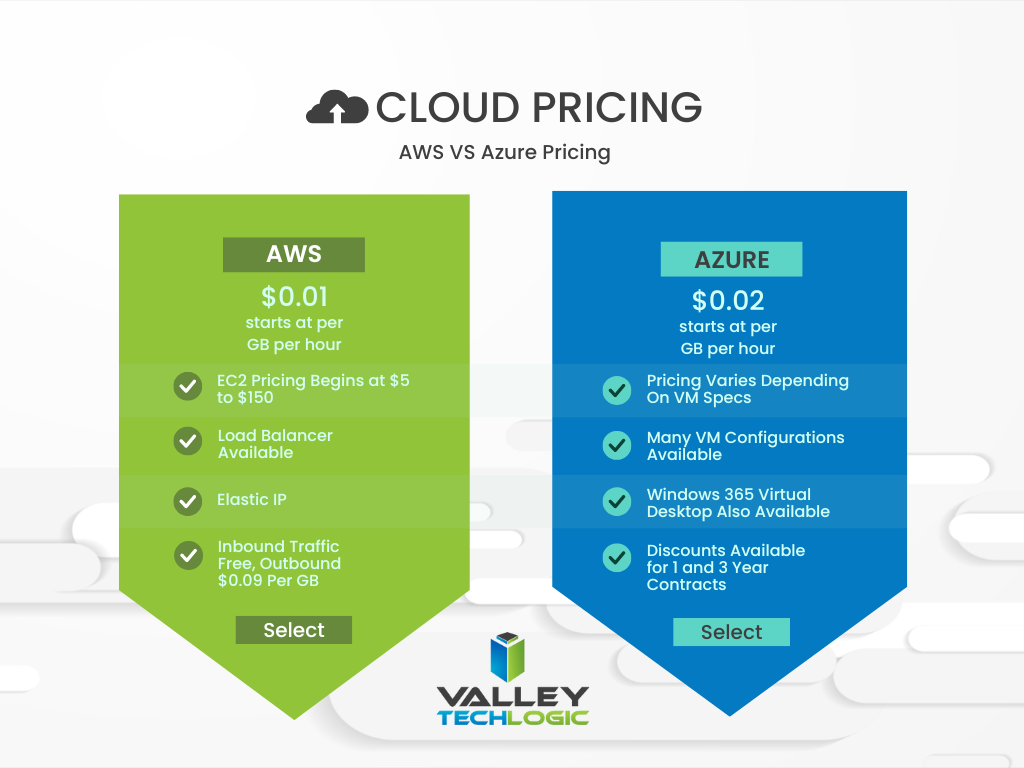
    If you answered no to all of the above then it might be worth considering whether upgrading to a supported Windows server is an option for you. We recommend leaving this task up to the professionals, upgrading a server is not the same as upgrading a laptop or desktop device. If the answer to any of the above questions was yes, then we highly recommend replacing, but should you replace your physical server or switch to the cloud? See our chart below for guidance:

    Cloud or On Premise Server? Still need more help with your Windows Server 2012? Valley Techlogic has been a Microsoft partner since 2004 and we’re experts in all things Windows. Reach out today for a consultation.

    Looking for more to read? We suggest these other articles from our site.

    This article was powered by Valley Techlogic, an IT service provider in Atwater, CA. You can find more information at https://www.valleytechlogic.com/ or on Facebook at https://www.facebook.com/valleytechlogic/ . Follow us on Twitter at https://x.com/valleytechlogic.

  • Another blow for Windows 7 and 8 hold outs, Steam announces they’re ending support for these devices January 1st 2024

    Another blow for Windows 7 and 8 hold outs, Steam announces they’re ending support for these devices January 1st 2024

    You might be thinking, why is Valley Techlogic a business IT service provider reporting on this? While it’s true, most of our content is aimed at our client base which is business owners, there is of course some overlap between that community and the gaming community. There is also the looming topic of what this signifies for those continuing to use outdated versions of Windows – business owners and gamers alike.

    The latest news from Steam officially announcing they’re cutting off support Windows 7, 8 and 8.1 devices on January 1st 2024. On that date the Steam client, which is how users access their games, will stop working on these devices. That’s because portions of the Steam client rely on a version of Chrome that has also ceased support for those versions of Windows as of February of this year.

    While Steam users still using Windows 7/8/8.1 are a minority at less than 3% of the total client base, around 7% of the population is still using devices featuring these operating systems (which doesn’t sound like a lot but represents millions of people). For context, Windows ended support for 7 as of January 2020 and for 8 and 8.1 January 2023.

    One of the obvious downsides which is connected to today’s news, beyond being unsupported by Microsoft themselves these operating systems will no longer be supported by the software platforms you use regularly, and they may cease functioning on those platforms altogether.

    There is also consequences to remaining on these operating systems that can fall way beyond losing access to your favorite games, without Microsoft support these devices are subject to more severe and more frequent security threats than modern operating systems that are still being actively supported.

    The WannaCry ransomware is one obvious example of ransomware that’s targeted these devices, infecting an estimate 16 million devices so far. The fix for this ransomware is restoring the device but that may be difficult on older machines still running Windows 7 and 8. You also run the risk of your device failing just because the components have reached their maximum lifespan.

    We always recommend replacing older devices BEFORE they fail because recovering the data on them is never a guarantee (especially without expert help).

    This especially includes servers, with support for Windows Server 2012 R2 ending October 10, 2023. Recovering the data from a server that has failed or been compromised can only be accomplished by experts – and the data recovery for servers is often lengthy and expensive.

    If you’re not sure of the end of life dates for your Microsoft products are coming up, here’s a chart you can keep as a reference:

    Microsoft End of Life Dates Coming up in 2023/4.

    It can be difficult to know whether you should update your device to the latest operating system, or if it needs to be replaced altogether. Your devices may technically run Windows 10 but if you have an older hard drive, or the device is more than 8 years old it probably makes sense to replace it instead.

    For businesses looking to replace older devices, we have partnered with both Dell and Lenovo and can help you navigate the process as well as give you access to the discounts and special offers available to us. Reach out today for a consultation.

    Also stay tuned, next week we’ll dive into whether it’s worth upgrading or replacing your on premises server or if it makes sense to move your data to the cloud and bypass a hardware purchase altogether.

    Looking for more to read? We suggest these other articles from our site.

    This article was powered by Valley Techlogic, an IT service provider in Atwater, CA. You can find more information at https://www.valleytechlogic.com/ or on Facebook at https://www.facebook.com/valleytechlogic/ . Follow us on Twitter at https://x.com/valleytechlogic.
  • Your questions answered, our Microsoft 365 subscription information for Nonprofits

    Your questions answered, our Microsoft 365 subscription information for Nonprofits

    As a Microsoft partner we help our customers receive the maximum benefits from their Microsoft 365 subscriptions, including access to the security features found under Microsoft Business Premium and the line of business software we’re all familiar with Office, featuring programs such as Excel, Word, Powerpoint and more.

    For our nonprofit clients they can reap these same benefits often at a reduced cost or even free. We wanted to break down what’s available and how you can take advantage of these benefits for your nonprofit business in today’s article.

    First, what are the eligibility requirements that nonprofits must meet in order to apply?

    Your organization must be one of the following three:

    1. A Nonprofit that’s recognized by your respective country, in the US if your business has 501(c ) (3) status you most likely qualify.
    2. Public Libraries.
    3. Public Museums.

    Our clients usually fall within the first category and their business sector varies, from healthcare to education and many others.

    Another restriction of the free or reduced cost licensing is you must use it for your non-profit staff. If you also have a for profit side of your business or another business that’s for profit you cannot use your non-profit licensing for those staff members. Also, for executive staff they must be unpaid to qualify to use the licensing.

    Microsoft also requires high utilization of the licenses you use, so we don’t recommend using them on staff members who don’t require a computer. They monitor usage and require 85% utilization.

    If your business meets the above requirements, you can apply using this link. Once you apply processing takes up to 10 business days while they validate your application.

    After you’re approved, you’ll have access to the Microsoft 365 benefits found in the chart below:

    Pricing Table for Microsoft 365 Subscriptions NonprofitAs you can see, these are not scaled back versions of Microsoft 365. Nonprofits receive the same level of service for free (or at a deep discount). If you’re curious what license version makes the most sense for your staff we have a free Microsoft guide that goes into the benefits of Microsoft 365 as well as providing information on Windows, Onedrive and more here.

    Microsoft also provides specialized training for nonprofits and discounts on Surface hardware, you can learn more about these programs here.

    At Valley Techlogic we’re well versed in helping support our nonprofit clients, we can help you with the Microsoft application process as well as helping your business with your day to day technology needs. If you would like to learn more click here to schedule a consultation today.

    Looking for more to read? We suggest these other articles from our site.

    This article was powered by Valley Techlogic, an IT service provider in Atwater, CA. You can find more information at https://www.valleytechlogic.com/ or on Facebook at https://www.facebook.com/valleytechlogic/ . Follow us on Twitter at https://x.com/valleytechlogic.