Author: rory-admin

  • Windows Server 2012 R2 End of Life is just a couple months away, are you ready?

    Windows Server 2012 R2 End of Life is just a couple months away, are you ready?

    Windows Server 2012 and Windows Server 2012 R2 are quickly approaching their End-of-Life date of October 10, 2023. This is just over 2 short months away and in the world of data migration (especially as it relates to servers) that doesn’t give you a lot of time if you’re still using this operating system in your business.

    If you’re not in the loop you may be wondering what the big deal is with letting it lapse, it’ll still work right? Well yes and no. The timing of this End-of-Life event coincides with when Microsoft usually does their biggest feature and security updates for the year (typically October).

    This means that those still using Windows Server 2012 will miss out on these updates, and all future updates to come unless you sign up for extended support (at a cost) and even then, that will only provide you with some security updates, there will be no future feature updates for Windows Server 2012.

    You may be on the fence because you aren’t sure if you want to continue using an on-premises server or make the move to the cloud. We actually wrote a detailed article on this topic before and how it relates to the pros and cons of moving to the cloud or remaining with an on-premises server. You can find that article here.

    If you are planning on trying to upgrade soon, we have a couple of steps we can recommend as you prepare:

    1. Decide which operating system you’ll be upgrading to. Typically we recommend upgrading to the most current operating system to give you the longest span of time before an upgrade will be needed again, however depending on your hardware or even specific software you use in your business this may not be feasible. We suggest having your server evaluated to determine which upgrade makes sense (or if an upgrade is even possible.
    2. If you discover your server can’t be upgraded, you’ll need to make plans for a new system. If you have an older server (over 5 years) you’ll need to determine whether an upgrade to the most recent version of Windows Server is even possible. If it’s not, you’ll have to pivot to purchasing a new system instead. There are many benefits to upgrading to a new server and an IT provider like us can help you narrow down your choices based on your business’s needs.
    3. Decide whether a clean installation is possible. If most of the data on your server is backed up elsewhere, for example if you have duplicate copies of your data in the cloud (which we highly recommend) then you can do a clean install without having to worry about the data already on the device.
    4. If a clean installation is not possible, you will need to do a migration. A migration is a slower process of updating your server to the latest version. If you’ve ever upgraded the operating system on your computer, you can probably relate as it’s similar just much longer and with more potential pitfalls. We only recommend a migration be attempted by a qualified IT technician.
    5. Plan for the future now. Scrambling to figure out what to do when an End-of-Life event for your device is coming up is stressful and fortunately, avoidable. Modern versions of Windows Server can perform what’s called an “In-place upgrade” which means an upgrade can occur with very little downtime or stress. Staying on top of your Microsoft and Windows updates and upgrades will mean you have the most secure version of their systems available and much less chance of a catastrophic failure occurring on your devices.

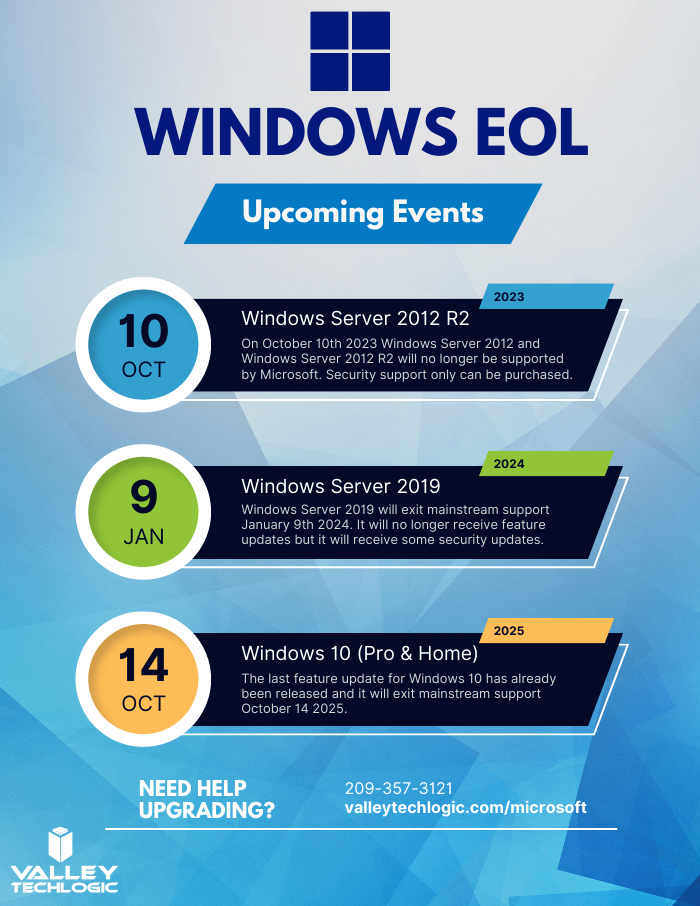
    To help with your planning for Microsoft’s upcoming End-of-Life events, we’ve created this chart with the latest dates to keep track of.

    If you need assistance with upgrading your Windows Server 2012 or Windows Server 2012 R2 device, or have questions about Microsoft products in general, Valley Techlogic can help. We are long time Microsoft partners, and our technicians have a wealth of experience in supporting Windows devices and navigating Microsofts offerings. Schedule an appointment today to learn more.

    Looking for more to read? We suggest these other articles from our site.

    This article was powered by Valley Techlogic, an IT service provider in Atwater, CA. You can find more information at https://www.valleytechlogic.com/ or on Facebook at https://www.facebook.com/valleytechlogic/ . Follow us on Twitter at https://x.com/valleytechlogic.


  • Zero-click exploits, how they work and how to avoid them

    Zero-click exploits, how they work and how to avoid them

    What comes to mind when it comes to viruses and malware and how they infect a device?

    Most of us think of someone accidentally downloading an infected program from an email or website, which we’re sorry to say doesn’t always end in the much maligned and feared .exe. These days executable files with malware can take the guise of an image, PDF, and more.

    Unfortunately, now users can be infected by malware or a virus without clicking on anything at all. A zero-click exploit can compromise a device without any action from its owner. While most malware is spread through social engineering attacks (tricking a user via email or on a webpage) zero-click exploits make use of existing vulnerabilities found on operating systems.

    So far these attacks have been mostly affecting mobile devices, with Apple having to release its third update recently aimed at addressing a zero-click spyware campaign that’s been launched to specifically target iMessage users in Russia. The attack dubbed “Operation Triangulation” affected a wide range of Apple devices including iPhones, iPads, Mac OS devices and even Apple TV.

    This type of attack was actually discovered when the iPhone of a journalist in Azerbaijani in 2020 received a silent command to open the Apple Music app. From there, the app connected to a malicious server and downloaded spyware onto the phone, which remained on the phone for 17 months collecting data silently in the background.

    The spyware in this instance was placed and developed by the NSO Group, which is an Israeli based security firm that sells technology to governments and law enforcement agencies. While the company says they’re developing this software as a way to address terrorism and curb crime, it has been misused by the government agencies who contract it in the past. Human rights groups have been critical of the NSO group for the violation of privacy this type of software poses.

    While most of these attacks have been aimed at Apple devices in particular, the NSO group also developed a version that exploited WhatsApp on Android devices. Both Android and Apple have been quick to patch these vulnerabilities as they are discovered.

    While in a different category, these attacks have a similarity to “zero-day” attacks which is when bad actors discover a vulnerability in a specific system and utilize it to gain access or enact malicious activity against the devices that are targeted. It’s referred to as “zero-day” because the product merchant has had zero days to deal with the issue when it’s discovered. The difference between a zero-day attack and a zero-click attack though is with zero-day attacks there’s typically some action that’s needed on behalf of the device owner.

    With zero-click attacks, no action is needed and these attacks can happen completely silently and with no warning.

    So how do you avoid something that sounds at first glance, pretty unavoidable? There are some mobile device hygiene habits that, while not making your phone completely impervious will drastically decrease your risk of falling victim to zero-click attack.

    When it comes to zero-click or zero-day the truth is cyber attacks can happen quickly and with little to no warning. As a business owner, your risk is multiplied by the number of devices you must maintain and secure in your office. That’s where Valley Technlogic can help.

    We are experts in the field of cyber security, we even wrote the book on it (claim a free copy today!) or reach out for a free consultation to learn how we can help mitigate these types of attacks on your business.

    Looking for more to read? We suggest these other articles from our site.

    This article was powered by Valley Techlogic, an IT service provider in Atwater, CA. You can find more information at https://www.valleytechlogic.com/ or on Facebook at https://www.facebook.com/valleytechlogic/ . Follow us on Twitter at https://x.com/valleytechlogic.

  • Zero trust or zero effort, how does your businesses security stack measure up?

    Zero trust or zero effort, how does your businesses security stack measure up?

    Have you been working on strengthening your cyber security stack in your business or crossing your fingers and hoping for the best? How much protection is really enough?

    There are a lot of remedies for improving cyber security out there, but which ones present the best value for your business, and what constitutes a “zero trust” environment?

    If you’re just starting out, these 10 items will greatly improve your business’s cyber security safety in a short amount of time (we call these “best practices”):

    1. Use multi-factor authentication. This one is obvious, but we still see it not being employed regularly. Multi-factor authentication is generally extremely easy to enable (often times just a checkbox) and it greatly improves the safety of that account. When we’re talking about accounts like your business email, or your banking account it’s a no brainer.
    2. Use a password manager. This is another easy one to employ but people still ignore it, or even worse they use the password manager built into their browser. We’re not saying that’s completely wrong, especially if you’ve started using stronger passwords because of it. It’s still a good idea, however, to use a password manager that’s not directly connected to your system. Often times the same password or biometric you use to log onto your computer is the one used to unlock your browsers password database, so if someone has breached the device all those passwords will be available to them too.
    3. Employ Biometrics. Speaking of biometrics, they can be an improvement over passwords when it comes to a physical devices security. Especially for mobile devices, most of us access our work emails, banking accounts, etc. through our phones. It’s very easy to lose a phone, so making that phone unusable to whoever finds it (or has taken it) is a good idea.
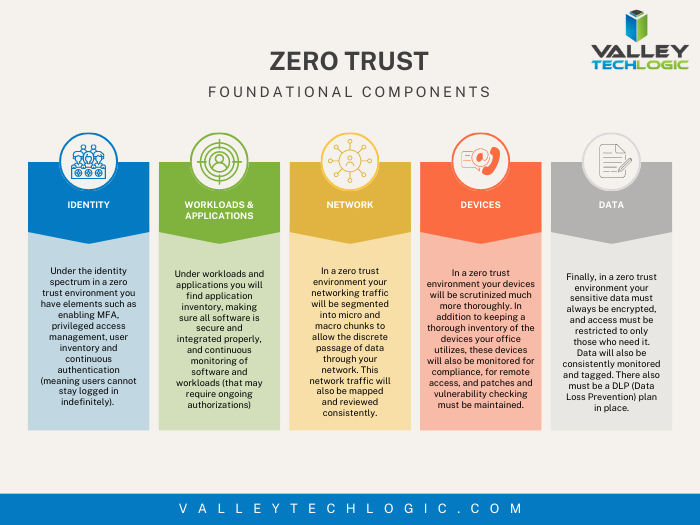
    4. Don’t give everyone admin privileges. Not every employee needs all the keys to your kingdom, limit admin access only to those who really need it so if you do have a breach the damage can be limited as well. This is a key component of a zero trust environment (which we describe in the chart below).
    5. Communicate your goals and train your employees. Loop employees into your increased cyber security efforts and provide training, no one wants to be responsible for a cyber-attack in their workplace but without training employees can become unknowing and unwilling threat vectors.
    6. Monitor network activity. Now we’re starting to get into the more challenging topics, monitoring your network activity can be a very effective way of noticing early when something is amiss. There are tools out there that can do this monitoring for you and provide warnings if suspicious behavior is detected (like a device being logged in after hours when it never usually is).
    7. Use encryption. It’s pretty easy to use encryption in email or with sensitive documents (again often just a checkbox) but it’s an effective way to make sure sensitive data doesn’t fall into the wrong hands.
    8. Use backups. Again, in the same vein of protecting your data having automatic backups will greatly increase your chances of recovering after a cyber-attack. Especially if those backups were stored offsite (such as cloud backups). We wrote an article on the best ways to manage your OneDrive storage (which is included in your Microsoft 365 subscription) here.
    9. Regularly patch your devices. Many of your vendors actually provide security protections for you via their patches, which more often than not are addressing specific security concerns that have been identified. Patching costs nothing but your time and the benefits are ten-fold compared to the costs of a security breach in your business.
    10. Have a security audit performed. The best way to address the holes in your security plan is to have a reputable IT company perform a security audit. Valley Techlogic is a provider of these audits in the Central Valley and you can request a consultation here.

    Performing these ten activities in your business will greatly improve your cybersecurity effectiveness across the board, but if you’ve reached the bottom of this article and have realized you do all of these you may be wondering what’s next? Or perhaps you’ve heard of zero trust but aren’t sure what that entails, here are the key components to having a zero-trust cybersecurity environment:

    We address ALL of these topics in our new book, Cyber Security Essentials, which covers all the components of a cybersecurity framework and how to implement them in your business. You can see a preview of the book in the video below.

    [youtube https://youtu.be/jlBAoq4tLNc]

    Looking for more to read? We suggest these other articles from our site.

    This article was powered by Valley Techlogic, an IT service provider in Atwater, CA. You can find more information at https://www.valleytechlogic.com/ or on Facebook at https://www.facebook.com/valleytechlogic/ . Follow us on Twitter at https://x.com/valleytechlogic.
  • The US has declared a $10 million dollar bounty for more information on this ransomware

    The US has declared a $10 million dollar bounty for more information on this ransomware

    The US State Department’s “Rewards for Justice” program announced a 10 million dollar bounty for any information leading to clues on how the Clop ransomware attacks are linked to attacks on foreign governments.

    Announced via Twitter, the Rewards for Justice account tweeted “Do you have info linking CL0P Ransomware Gang or any other malicious cyber actors targeting U.S. critical infrastructure to a foreign government? Send us a tip. You could be eligible for a reward.” This program was initially launched to gather information on terrorist groups targeting US interests.

    The program has now grown to include attacks perpetrated by cyber criminals (even outside the US). It has collected information on the REvil ransomware, Russian Sandworm hackers, Evil Corp hacking group and more.

    This Isn’t the first time the US has announced a substantial bounty for information on cyber crime, in May of this year the Department of Justice also announced a $10 million dollar bounty for information leading to the arrest of the alleged Russian ransomware mastermind Mikhail Pavlovich Matveev, also known online as “Wazawaka”.

    Mikhail Pavlovich Matveev or “Wazawaka” was accused of demanding $400 million from his victims (most of which purportedly paid). His exploits make him one of the most prolific single cyber criminals in history, but due to his illusive nature he still remains uncaught despite the substantial bounty on his head.

    Switching back to our story on the “Clop” ransomware, we covered one of the victims of this ransomware just last week in our article on the CalPers/CalSTRs data breach. Clop was used in the zero-day vulnerability found in the MOVEit file transfer software.

    Now, the group behind the Cl0p ransomware is extorting companies whose data was stolen during the attack and threatening to leak it online if the ransom is not paid.

    Victims of the Cl0p ransomware attack received this message June 17th, outlining the demands the group has for them and even offering an online chat to discuss the terms of payment. Victims are being given just 3 days to come to an agreement or an online page will be created by the group and their information will be leaked online.

    Outside of paying the ransom or dealing with the fallout of their data being leaked, there is little recourse for victims of this type of crime. The bounty is not due to the businesses and individuals whose data has been stolen in this attack, but the fear that the Cl0p ransomware group also received information on data sensitive to US security during their attack.

    The Cl0p ransomware group has said they will be deleting any data that pertains to the US or foreign governments, but of course there is no way to confirm this is true. All in all it will be interesting to see how the effects of offering a bounty for information leading to the arrest of individuals involved in these attacks acts as a deterrent for future attacks.

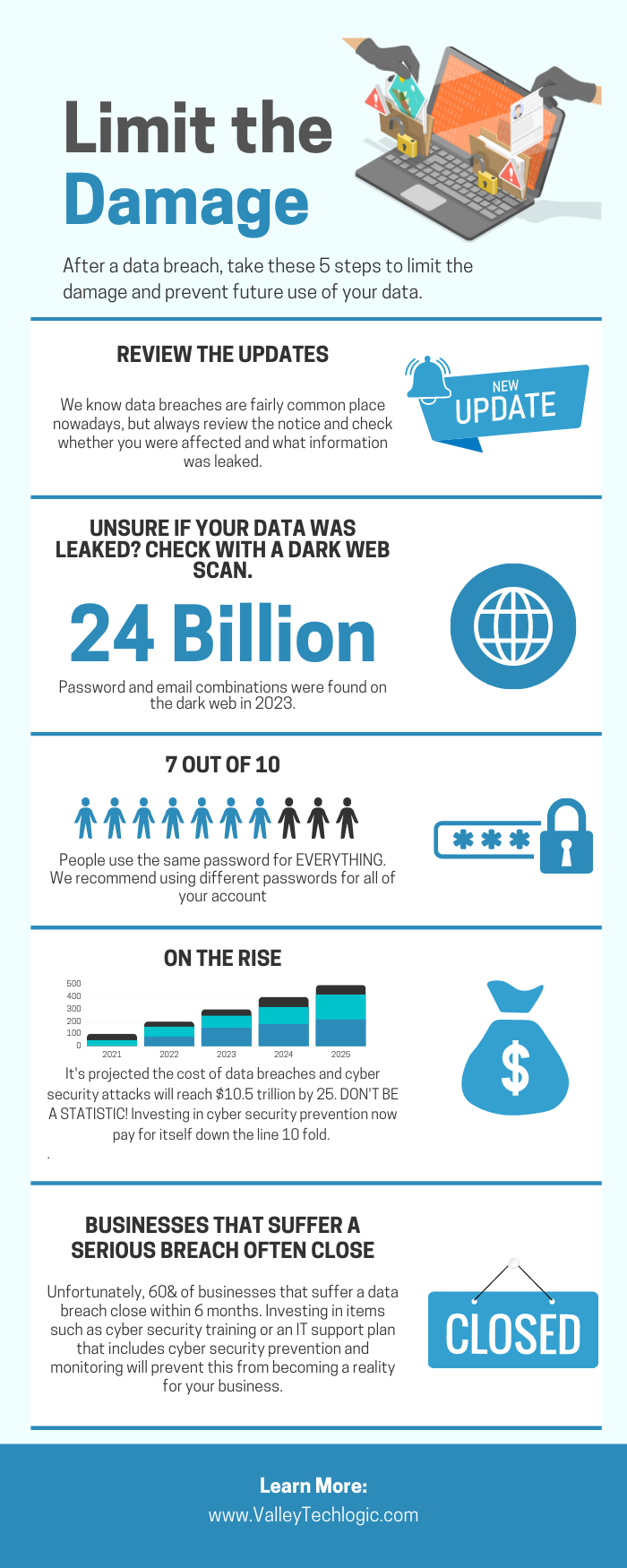
    If your data was leaked in this recent breach or you’re worried about identity theft, we do have some tips on what to do if your information has been leaked online or or to lower your risk factors below:

    Of course, the best method of keeping your data safe is to prevent it from being leaked in the first place, and Valley Techlogic can help. Cyber security is our main focus, and we know the cost of prevention can often dwarf the cost of remediation when it comes to cybercrime many times over. Learn more about how we can improve the security in your business today.

    Looking for more to read? We suggest these other articles from our site.

    This article was powered by Valley Techlogic, an IT service provider in Atwater, CA. You can find more information at https://www.valleytechlogic.com/ or on Facebook at https://www.facebook.com/valleytechlogic/ . Follow us on Twitter at https://x.com/valleytechlogic.

  • California retiree’s pensions possibly in limbo after data breach targets the nation’s biggest pension funds

    California retiree’s pensions possibly in limbo after data breach targets the nation’s biggest pension funds

    News just broke yesterday that a data breach targeting the nation’s biggest pension funds CalPERS (California Public Employees’ Retirement System) and CalSTRS (California State Teachers’ Retirement System) lead to the release of identity information on more than 1.1 million of their members collectively.

    Not only will this breach possibly affect the pensions and identity security of existing members but also those who have not yet reached retirement age but whose information is still in the system. Even family members of affected users may have had their identifying information leaked during the breach if their details were added to these systems.

    CalPERS released a statement saying that the breach did not affect their own systems and it will not affect current members’ monthly benefits. Still, the company has said they have upped their security measures and will be offering free credit monitoring for affected users. Users should receive a notice soon as to whether or not their information was identified as being compromised by the breach.

    Information that was allegedly leaked includes addresses, dates of birth, social security numbers and more.

    The origin of the breach was through the PBI Research Services MOVEit file management software which CalPERS and CalSTRS use as a third-party vendor to identify death benefits or for additional beneficiaries in their systems. The effects of this the zero day hack on the MOVEit software are still reverberating throughout the US, with other companies reporting being affected such as Siemens, UCLA, Schneider Electric and more.

    Although PBI Research Services was notified of the breach themselves on June 4th, it was still two more weeks before CalPERS and CalSTRS were notified which has led to a delayed response. PBI has also notified federal law enforcement to ensure extra steps are taken to protect the pension fund status of affected users. Additional identity checks are expected to be put in place to make sure pension funds are only claimed by those who are eligible for them.

    California’s treasurer Fiona Ma is urging that a special meeting be held to discuss the aftermath of this breach, which only elaborates how serious this is. Ma sits on the board of both pension funds.

    We want to reiterate that pension funds are not currently at risk, however due to the nature of identity theft, preventing future fallout from this breach is of the utmost importance and no small task.

    This breach elaborates on the importance of vetting your vendors well. Even if you’re doing everything you can to protect your business from a cyber-attack, vendors you use that have access to your systems also need to do their part or your efforts may be in vain. Here is a checklist you can use when vetting a new technology vendor:

    If you need assistance in making in recovering for a data breach, or to prevent one from happening to your business in the first place Valley Techlogic is here for you. Cyber security efficacy is one of our core company values and our customers security concerns are regarded with the utmost importance. Schedule a consultation today to learn more.

    Looking for more to read? We suggest these other articles from our site.

    This article was powered by Valley Techlogic, an IT service provider in Atwater, CA. You can find more information at https://www.valleytechlogic.com/ or on Facebook at https://www.facebook.com/valleytechlogic/ . Follow us on Twitter at https://x.com/valleytechlogic.
  • Keep running out of disk space? Here are our solutions.

    Keep running out of disk space? Here are our solutions.

    Have you been getting a low disk space error on your Windows device? This means your computer is out of space to download new files or even apply crucial updates. There are some obvious solutions to the problem and not some not obvious solutions that will help you solve the problem in the long term.

    The first obvious solution is to delete files you no longer need. If your SSD or hard drive is on the smaller side this can be easier said than done. It’s important to remember a Windows installation typically takes up 90 GBs of space, so if you’re only working with 250 GBs that’s nearly half your drive space utilized off the bat. We often recommend customers keep this in mind when they’re shopping for a new computer.

    The second obvious solution is to clear your computer of junk files, such as temporary files or cookies. You can do this quickly by searching for “Disk Cleanup” in the search bar on your task bar or by hitting Windows Key + R and typing “cleanmgr” in the box that comes up. Then you select the drive you wish to clean (typically C). The temporary files folder should already be selected but you can choose to clean up more folders if you would like (Recycle Bin is often another good choice for reclaim space).

    This is an example of what the Disc Cleanup tool can do.

    The third option, which may be a little trickier depending on the type of device you have, is to add additional storage. For a desktop computer with additional drive bays, it can be relatively easy to have an extra SSD installed though you may require assistance in pairing it with your computer. Laptops often have their storage soldered, meaning an upgrade is not possible, however this can vary and it’s best to leave this up to a professional.

    Some of the not so obvious solutions are:

    1. For Microsoft 365 users, you actually have access to 1 TB of personal storage through OneDrive. This means you can move some of your files to your OneDrive storage while clearing up space on your personal computer. Even free users have access to 5 GBs of personal space. We created an article on how to best utilize your OneDrive storage here.
    2. Transfer large files to an external drive. While less convenient then having the drive built into your device, external drives are quite affordable and can work in a pinch to give you the space you need while evaluating whether more permanent storage remedies are available.
    3. Verify your drive is actually full. Some viruses and malware can either fill up your device with bogus files or trigger this error, so it’s best to have an IT professional evaluate your device if you’re getting a “Low Disk Space” error when you know you should have adequate space available.

    If you do have low disk space, you may be wondering how often the error will pop up for you. It depends on just how much space you have left. Windows typically issues 3 warnings.

    1. At 200 MBs remaining the error will show up once for 10 seconds.
    2. At 80 MBs remaining the error will show up every 4 hours for 30 seconds.
    3. At 50 MBs remaining the error will show up at every 5 minutes for 30 seconds, obviously by this point it’s crucial the issue be addressed.

    If you’ve reached this point and decided it’s a good idea to replace or add storage to your device, you may be wondering what to buy. For laptops and desktops, we really recommend SSDs over hard drives. Hard drives contain a physical component (a disk that spins) and this part can break down with use and leave you in the lurch. Even with SSDs though there is high end and low end. We’ve broken down some of this information in the chart below.

    Need more advice on purchasing storage for your business? Valley Techlogic are procurement experts, our sales team can work with you to choose the right storage options for your business and our technical team can manage your installation. Learn more about Valley Techlogic’s procurement services here or schedule a consultation today.

    Looking for more to read? We suggest these other articles from our site.

    This article was powered by Valley Techlogic, an IT service provider in Atwater, CA. You can find more information at https://www.valleytechlogic.com/ or on Facebook at https://www.facebook.com/valleytechlogic/ . Follow us on Twitter at https://x.com/valleytechlogic.

  • Need a new work laptop? Here are five features to focus on

    Need a new work laptop? Here are five features to focus on

    Selecting a new work device is a personal choice, there are factors a lot of buyers focus on. Sizing, screen type, track pad feel or material, keyboard type. All of these peripheral factors that go into choosing the perfect laptop to complete your work on.

    We want to dig specifically into what you should consider when it comes to the specs of your work laptop. What you do and how you do it will greatly affect whether a laptop is the right choice for you, from smaller footprint lower cost models that work perfectly for light duty to robust, graphic and memory intense models that can handle high use scenarios such as graphic design or multi-tasking.

    Here are the five things we consider most important when it comes to the use of your laptop for work.

    1. Battery Life. Battery life may not be as important if you intend to dock your computer at a desk and leave it there primarily. If you need your laptop on the go, however battery life is hugely important and what’s available varies widely. One thing to remember is that higher specs usually correlate to less battery life, so if your job is light duty but on the go it may be better to look for a lighter, less powerful laptop.
    2. RAM/Memory. No matter what we recommend at least 16 GBs in your laptop (or the ability to upgrade). This is because Windows itself uses quite a bit of memory, so if you opt for less memory in your work laptop you may find it struggles to keep up. 8 GBs might be okay for very, very light usage but for heavy users 16 or 32 GBs is preferable.
    3. Storage. Again, because Windows does use up some of the storage available for its installation we want to look for more capacity if possible. For light users 500 GBs is fine, but for most users we would recommend at least 1 TB.
    4. Video Card. When you think video cards you might think gaming, but a good video card is also used by your computer for certain processes, especially graphically intense one. If video editing or graphic design is part of your workflow, we suggest looking for a work laptop with a better video card even if it’s a laptop that’s marketing is aimed at gamers. As a bonus these laptops will usually have a better quality screen as well.
    5. CPU. We can’t overlook the CPU quality In the laptop buying process. More CPU power means more capacity to run programs or have a lot of tabs open in your browser.

    Of course, if you’re buying for many users within your organization, it can be difficult to customize your buying to specific users. At Valley Techlogic we’re able to make recommendations for laptops that will meet the needs of your workforce while also keeping budget in mind.

    Through Valley Techlogic’s procurement services we can help you buy new equipment for your office through our vendors with more choices than are usually offered through their brick-and-mortar presence. We have relationships with Dell, Lenovo, HP and more that we can use to your advantage.

    Valley Techlogic also offers installation services if you need help setting up your new equipment and getting it ready for your employees.

    Learn more about our procurement services today by clicking the banner below to get started, or click here to schedule a consultation.

    Looking for more to read? We suggest these other articles from our site.

    This article was powered by Valley Techlogic, an IT service provider in Atwater, CA. You can find more information at https://www.valleytechlogic.com/ or on Facebook at https://www.facebook.com/valleytechlogic/ . Follow us on Twitter at https://x.com/valleytechlogic.
  • AWS vs Azure, what is your best option when choosing a cloud platform?

    AWS vs Azure, what is your best option when choosing a cloud platform?

    We’ve had articles in the past about why you should consider making the move from on-premises to the cloud, but we’ve never specifically addressed which provider you should consider when making this move.

    For many, AWS (Amazon Web Services) and Azure are the main players that they look to when making the jump the cloud. Brand recognition is obviously there for both choices, as well as a history of impeccable uptime. Uptime is a very important factor, obviously you want your data to be available when and how you need it, but there are more things to consider.

    First, let’s look at the players. AWS has been around since 2006 and offers a “pay as you go” model, which means you pay only for the data you actually use. Many of us are familiar with the webstore Amazon, and you’d probably be surprised to learn AWS is a much bigger venture for Amazon, with 74% of their profit coming from AWS.

    Azure was launched in 2010 and is also pay as you go. However, how they differ is that Azure actually lets users access their data through a virtual machine on a Virtual Hard Desk (VHD). This means their interface is slightly more user friendly from the start. For a similar interface in AWS you must rent an EC2 (their version of a virtual machine). EC2 is more customizable but Azures Virtual Machine may more easily work with existing Cloud computing tools.

    Both are similar in that they offer scalable storage solutions; however, their object size restrictions vary slightly, with AWS having a 5 TB object size limit and Azure having a 4.75 TB limit. For most of our customers this would be a very negligible difference, however.

    Both do an excellent job of securing your data, in AWS you customize your security settings on setup. With Azure, they use Microsoft’s Cloud Defender services which are similar to the Windows Defender services you probably already utilize.

    AWS has a dashboard that may be easier to use if it’s your first-time using cloud services when it comes to looking for documentation on how to use the service. Where Azure has them beat though is that Azure keeps all of your user account and information in one place. So, depending on which kind of information you’re looking for, you may prefer one over the other.

    If customizing your cloud experience via code is something you’re after, you probably want to stick with AWS. Through their SageMaker system you can utilize their artificial intelligence (AI) tools to develop a very specific and unique experience when it comes to tracking data, making modifications, and applying updates.

    Azure on the other hand has opted for a “Codeless” interface, even someone with zero coding knowledge can drag and drop pieces to customize their cloud’s AI interface.

    Of course, from a base level you can look at what operating system these are compatible with. AWS is more compatible with Linux while Azure offers compatibility through .net with Linux, Windows and MacOS.

    In a nutshell, these two cloud behemoths are more alike than different but there are some factors that depending on your particular business sector or goals may lead you to shift one way or the other. We also want to spend a moment addressing a pricing breakdown for both AWS and Azure. You can see their pricing models in the chart below. We also want to note that both provide a free introductory period so you can test their services before committing to a plan.

    Are you considering a move to the cloud and aren’t sure which provider to go with, or even how to make it happen? Valley Techlogic can help. We’re experts in cloud computing and have managed many customer cloud migrations. Reach out today to schedule a free consultation.

    Looking for more to read? We suggest these other articles from our site.

    This article was powered by Valley Techlogic, an IT service provider in Atwater, CA. You can find more information at https://www.valleytechlogic.com/ or on Facebook at https://www.facebook.com/valleytechlogic/ . Follow us on Twitter at https://x.com/valleytechlogic.

  • Security Camera Buying Guide for Businesses in 2023

    Security Camera Buying Guide for Businesses in 2023

    We may be alone here, but it seems like the interest in security cameras has climbed over the past year. Perhaps it’s because the technology has vastly improved over the last decade and our clients are ready to swap out slower, inefficient models that capture lackluster video at and are expensive to maintain for newer models that capture crisp clear video and have increased features to make reviewing that video much, much easier.

    If you were unaware, the grainy surveillance footage you’re used to seeing is quickly becoming a thing of the past. If you’re a fan of crime dramas, you may have seen the police officers in those show ask to have a video unrealistically “enhanced” to show the suspects on screen from original footage that starts out barely visible. Now, that sort of technology is in some cases a reality.

    Instead of starting with grainy footage, the cameras we have available for our customers have clear easy to view footage of a wider area than you would have been able to get in the past (meaning less cameras to buy to cover the same square footage). These cameras are also backed by software enhancements that enable you to search through the footage to find a specific time, an object such as a license plate, or even specific people.

    You can learn more about the AVA powered camera systems we offer here. The best thing about the AVA solution is it can pair with your existing cameras, allowing you access to many of these benefits without buying new cameras.

    That brings us to the pros and cons of buying a new camera system for your business:

    • Pro: Enhanced Features, obviously we just spent some time going over the features you’ll stand to gain from a new camera system. Another feature you may not have considered is reduced storage costs; many camera systems now store data in the cloud meaning you will not have to pay for onsite storage (which can add up if you tend to save your footage for a while).
    • Con: Cost, obviously the cost of a new camera system can be quite expensive, but perhaps less than you may think. As technology has grown and cameras have become more ubiquitous, the costs have also dropped.
    • Pro: More Options to Fit More Spaces, if you have old school bullet style cameras only you may be surprised at the range of options and styles available now. We still recommend the bullet style for outdoor use as it’s very obvious that a camera is in place to potential intruders, but for in office use a more discreet camera might make more sense (and you can look at our chart on camera styles below).
    • Con: Installation, going through the installation of any kind of equipment can bring up unforeseen issues. Problems with wiring or getting the placement exactly right for the location it’s being placed. There is of course the expense of the installation too, which in some cases can rival the cost of the cameras themselves. Every situation is different and it’s best to have your specific setup reviewed by a technician to get a clear estimate.
    • Pro: Better Able to Work in a Variety of Conditions, older cameras often didn’t handle interference or poor lighting very well. Today’s cameras can adjust for poor lighting or poor visibility and some cameras even offer night vision for poorly lit areas of your building.
    • Con: Software Costs, of course for AI or software backed cameras you will encounter a software cost for utilizing those features. We feel it’s more than worth it considering how much more useful your cameras will be for your business and should be considered part of the cost of maintaining your security in your business.
    • Pro: More Integrations, as our AVA page illustrates, many of today’s camera systems also integrate with sensors that can monitor for odors or liquids, and even specific sounds (such as screaming or a gunshot).
    • Con: There really aren’t any additional cons outside of the expense and going through the installation process, once your new camera system is in place you will wonder how you ever got by without it.

    Here is a brief overview of the types of cameras that are now available on the market:

    While we recommend the AVA solution the most for our clients, we have camera system options for businesses of all shapes and sizes. We would be more than happy to provide a custom estimate for your business, reach out today to schedule a walkthrough with one of our security camera experts.

    Looking for more to read? We suggest these other articles from our site.

    This article was powered by Valley Techlogic, an IT service provider in Atwater, CA. You can find more information at https://www.valleytechlogic.com/ or on Facebook at https://www.facebook.com/valleytechlogic/ . Follow us on Twitter at https://x.com/valleytechlogic.